Manifests
Every Workload you create in SleakOps is deployed to Kubernetes through a set of manifests — the Deployment, Service, Ingress, PodDisruptionBudget and HorizontalPodAutoscaler resources that SleakOps generates for it. The Manifests feature makes those resources first-class citizens: you can inspect each one, customize its YAML, disable it, or add your own extra manifests — per Workload or shared across the whole Project.
Manifests is available since SleakOps 3.0.0 and is enabled per company. If you don't see the Advanced toggle on your Workload forms or the Manifests section in your Project's Chart Configuration, ask your SleakOps contact.
Manifests is also a prerequisite for importing a Project from an existing Helm release.
Where to find them
Manifests live in two places:
- Per Workload — open any Workload (WebService, Worker, CronJob or Hook) and switch the view toggle from Form to Advanced. The Advanced view has two tabs: Manifests (the graph of resources) and Values (see Values).
- Per Project — go to Project → Settings → Chart Configuration. The Manifests section lists every Workload and manifest in the Project, and manages the shared project bucket.
The Form view is still the source of truth for your Workload's configuration: one submit updates every generated manifest. The Advanced view is where you inspect and customize what gets deployed.
The manifest graph
The Manifests tab shows the Workload's resources as a graph, with the edges representing the relationships between them:
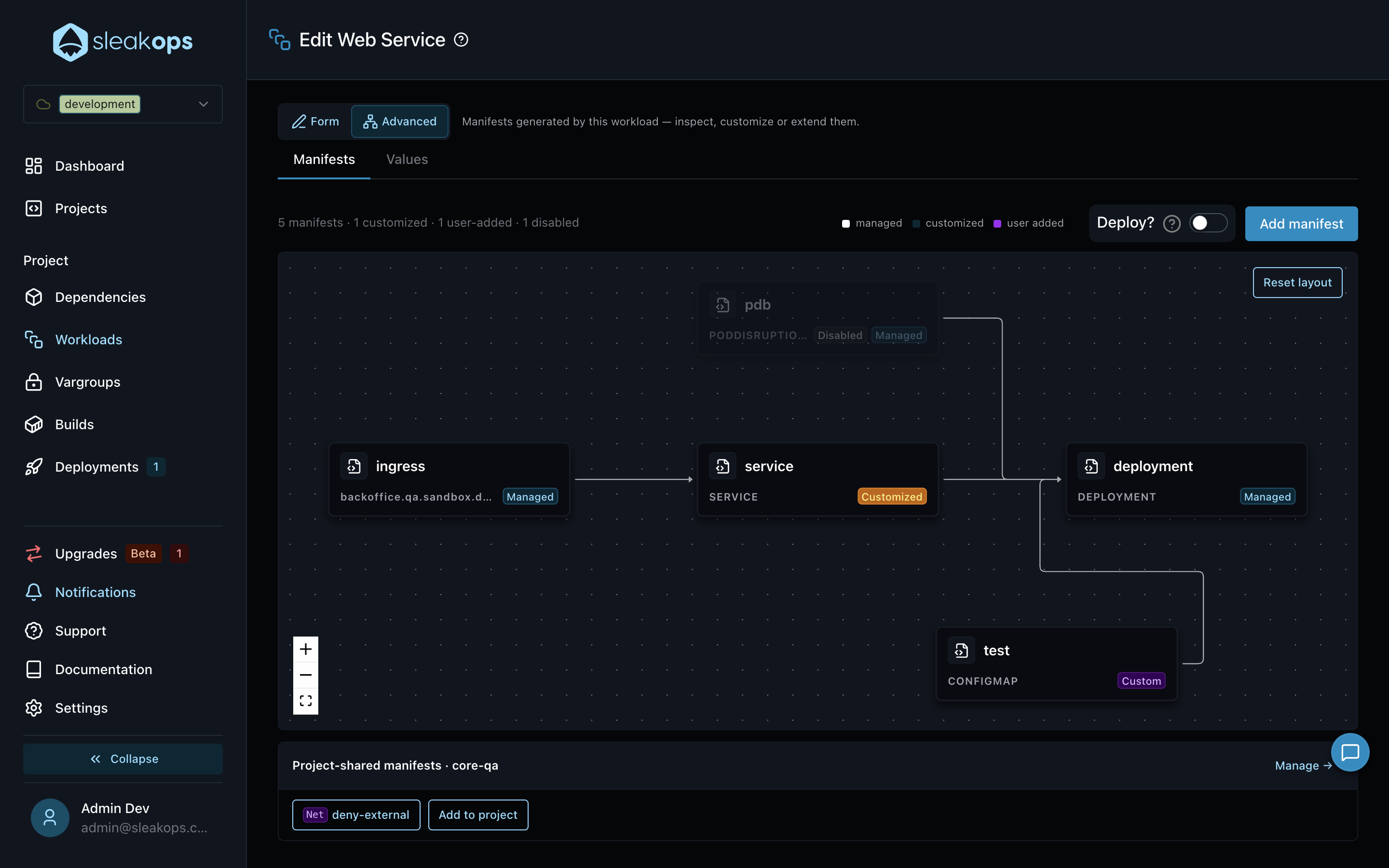
Each node shows the manifest's name, its Kind (or resolved host, for Ingress manifests) and its origin:
| Origin | Badge | Meaning |
|---|---|---|
| Managed | Managed | Generated and kept up to date by SleakOps. Base template updates apply automatically. |
| Customized | Customized | You edited its YAML. SleakOps never overwrites your copy — see template updates. |
| Custom | Custom | A manifest you added yourself. It has no SleakOps base template. |
The Custom origin is also labeled "user added" in the editor header and workload toolbar — same thing, worded differently depending on where you're looking.
Disabled manifests show a Disabled badge and their edges render dashed. A summary line above the graph counts manifests by origin (N manifests · X customized · Y user-added · Z disabled), matched to a color-dot legend.
You can drag nodes to arrange the graph — positions are saved per Workload, and Reset layout restores the automatic arrangement. Dragging nodes is a layout action — it updates instantly but never registers a pending change or triggers a deployment, regardless of the Deploy? switch. Edges can't be drawn or re-linked on the graph: a manifest's dependencies are set only through Depends on when you add it.
Below the graph, the Project-shared manifests strip shows the manifests in the project bucket that deploy alongside every Workload, with a Manage → shortcut to the Project's Chart Configuration and an Add to project button that opens the add dialog with the Project bucket scope preselected.
Ingress per domain
Every domain or alias you add to a WebService gets its own ingress-<slug> node in the graph, separate from the node for the Workload's default URL — you'll see one Ingress manifest per host, not a single shared one.
Deleting a per-domain ingress manifest only removes routing for that host: SleakOps does not re-create it automatically. Add a new manifest (or re-add the domain) if you need that host back.
Adding a domain whose host maps to the same Kubernetes Ingress name as an existing host of the Workload is rejected when you save the domain — api.acme.com and api-acme.com collapse to one name; pick one that differs in more than dots or dashes. Manifest node names never clash: a repeated slug simply gets the domain's id appended.
Editing a manifest
Click any node to open the manifest editor. The header shows the manifest's kind, origin, an Enabled switch, a copy button and Delete (Admin role required — see Who can edit manifests?).
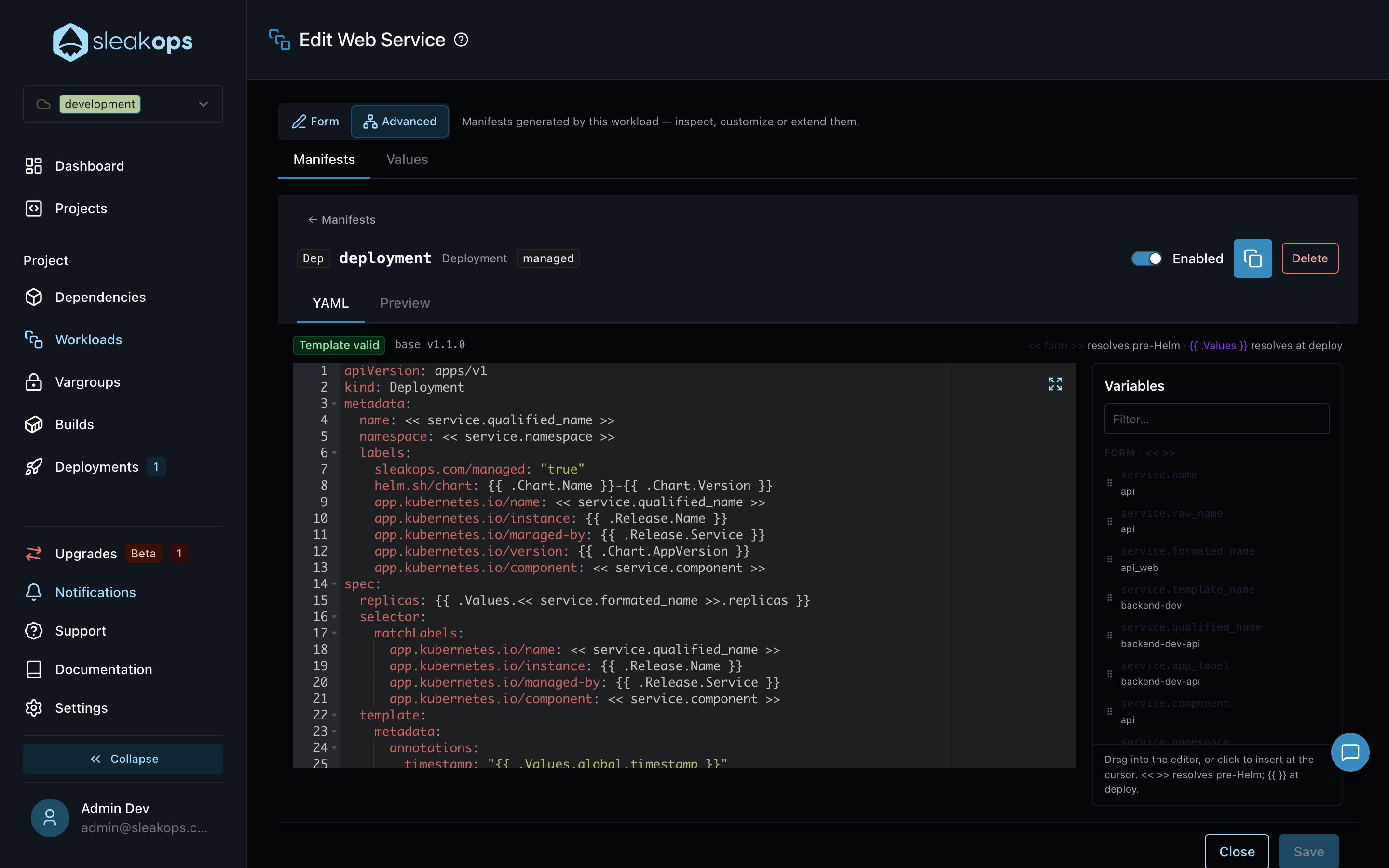
The YAML tab is where you edit the template; its toolbar shows the base template version the manifest was created from (base vX, or no catalog base for a manifest you added). Two kinds of placeholders can appear in it:
<< form >>variables resolve before Helm, from the values of your Workload form (name, namespace, command, healthcheck, etc.).{{ .Values }}expressions are left for Helm at deploy time (replicas, resources, image tag — everything that comes from Values).
The Variables panel on the right lists everything available: click an entry to insert it at the cursor, or drag it into the editor. Dragging a variable onto the editor shows a live cursor preview of where it'll land before you drop it.
The editor validates as you type and lists the issues below the YAML, with a Template valid / N errors badge in the toolbar. The live check doesn't disable Save: SleakOps validates again on save and rejects a template that still has errors, showing them in the same panel. The live check flags:
- Unknown variables not declared in the Workload's variable context.
- Expressions blocked by the template sandbox.
- Removing the protected
sleakops.com/managedlabel. - A
namespacedifferent from the Project environment — shown as a warning while you type, but the save is rejected: the namespace always belongs to the environment.
Saving your first structural edit turns a managed manifest into customized. If the Deploy? switch on the graph toolbar is off, the save is registered as a pending change; if it's on, a deployment is triggered right away (edits made from Chart Configuration are always pending — see Deploying your changes).
Preview
The Preview tab renders the template with the current form variables and shows exactly what will be handed to Helm:
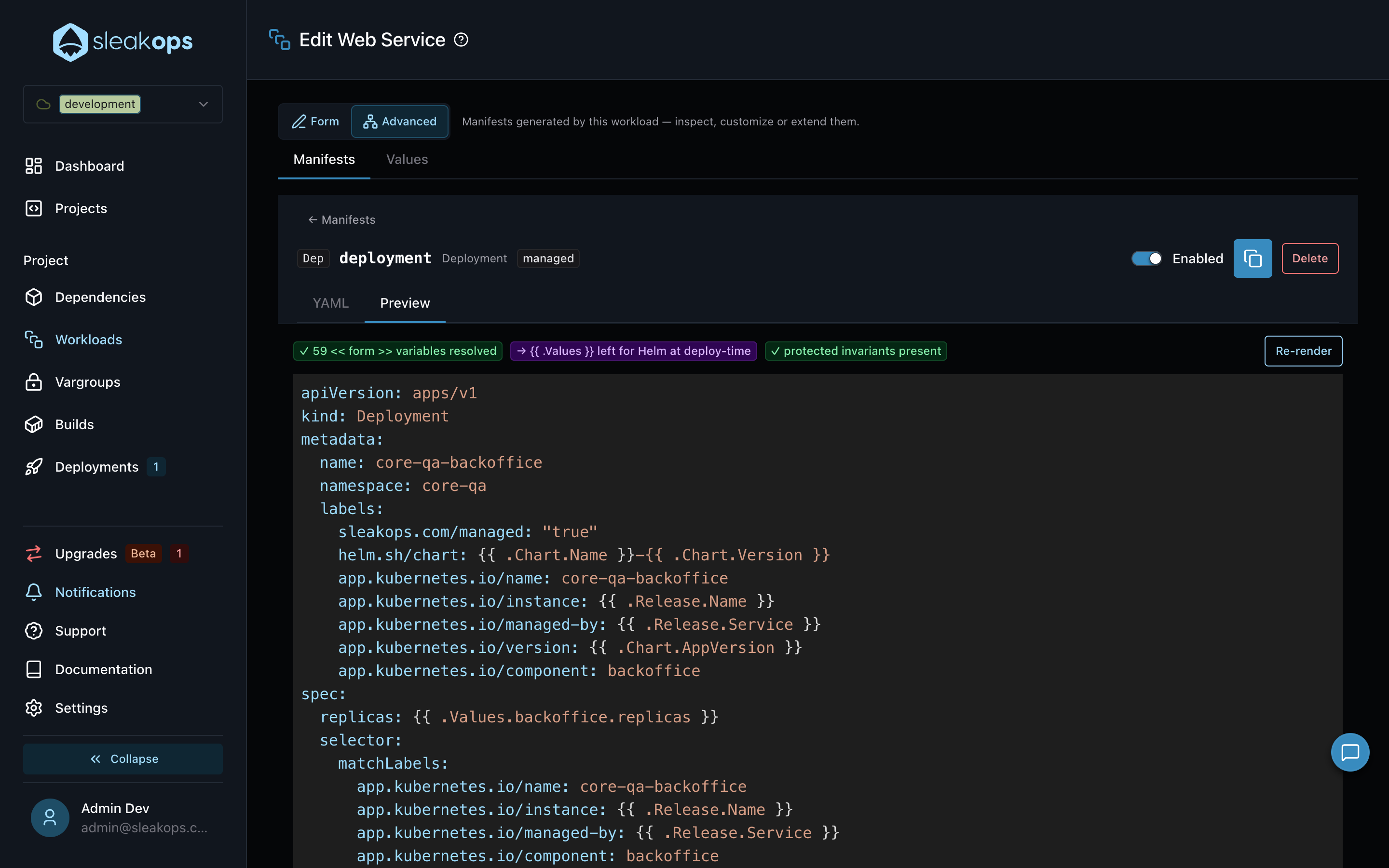
The badges above the output confirm how many << form >> variables were resolved, whether {{ .Values }} expressions remain for deploy time, and that the protected invariants are present.
If the template fails to render, the Preview tab replaces its output with a "Template failed to render — nothing will deploy" card, listing the errors with their line numbers and a Fix in YAML shortcut — this is different from the badges that just flag unresolved {{ .Values }} expressions, which still render fine.
Adding a manifest
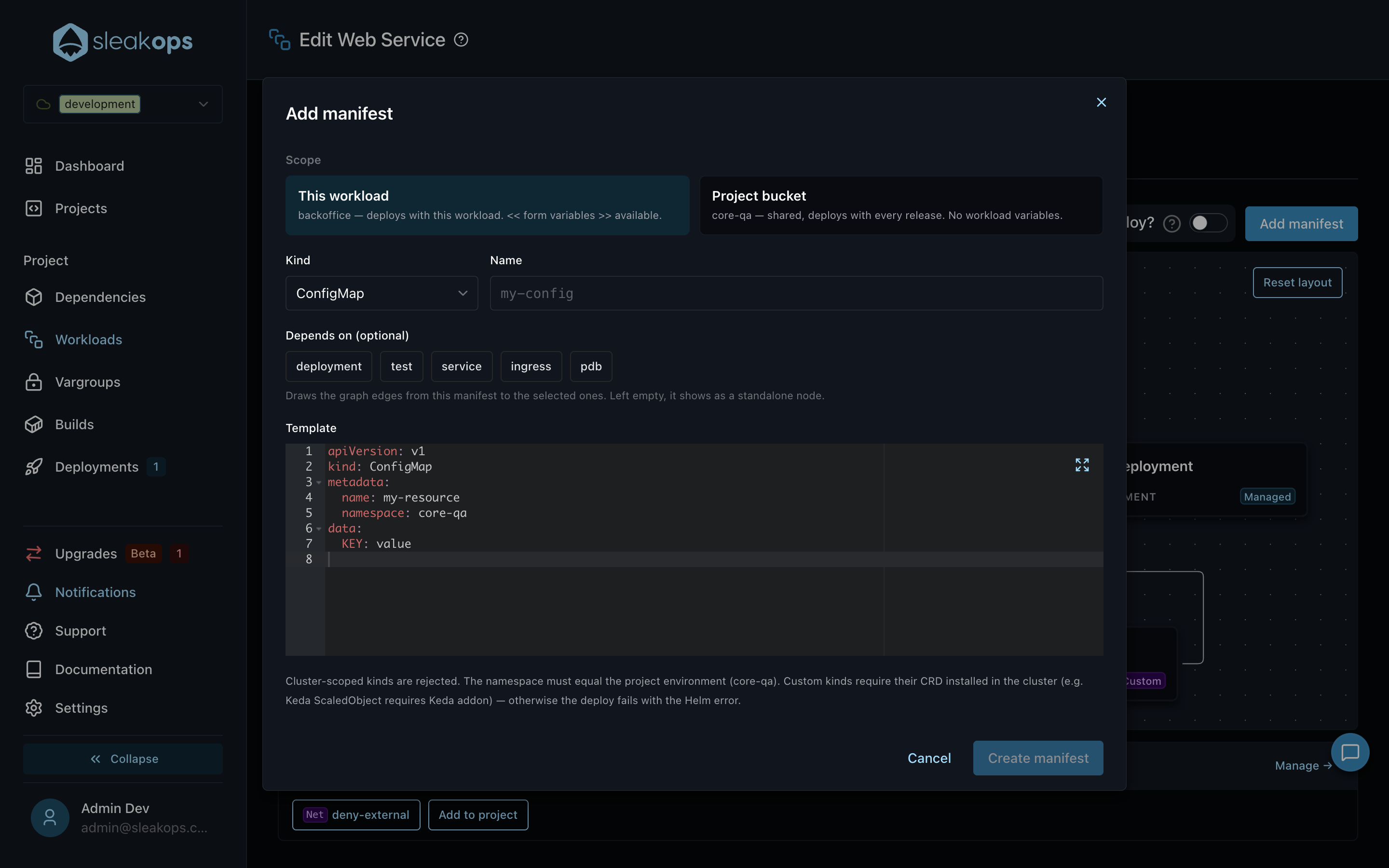
Use Add manifest (on the Workload graph toolbar, or in the project bucket of Chart Configuration) — or Add to project on the Workload's Project-shared manifests strip — to deploy resources beyond the generated ones (Admin role required — see Who can edit manifests?):
| Field | Description |
|---|---|
| Scope | This workload (deploys with the Workload, << form >> variables available) or Project bucket (shared, deploys with every release). |
| Kind | ConfigMap, Secret, ServiceAccount, NetworkPolicy, PersistentVolumeClaim, CronJob — or Custom… for any other kind, including CRDs. |
| Name | The manifest's name; it is mirrored into the template's metadata.name. |
| Depends on | Optional. Draws the graph edges from this manifest to the selected ones. |
| Template | The manifest YAML. A starting stub is generated for the selected Kind. |
Create manifest stays disabled until Kind, Name and Template are all filled. While you haven't hand-edited the stub, typing a Name mirrors it live into the template's metadata.name and switching Kind regenerates the stub for the new Kind; once you edit the template by hand, neither changes it.
Keep in mind:
- Cluster-scoped kinds are rejected — in practice, a manifest without a
namespacein its metadata is rejected as "cluster-scoped"; set it explicitly, equal to the Project environment. SleakOps only checks whether the field is present, not whether the kind is genuinely cluster-scoped in Kubernetes. - Custom kinds require their CRD installed in the cluster — for example, a Keda
ScaledObjectneeds the Keda Addon. SleakOps does not check this when you save the manifest; it only surfaces as a Helm error the next time the manifest deploys.
The project bucket
Manifests added with the Project bucket scope are not tied to any Workload: they deploy with every release of the Project. Typical residents are NetworkPolicies, shared ConfigMaps and ServiceAccounts. Manage them from Project → Settings → Chart Configuration → Manifests:
The project bucket lives in Chart Configuration, which is enabled per company. If the Chart Configuration card is missing from Project → Settings, the Workload's Project-shared manifests strip reads "No shared manifests in this project yet." even if the Project has some — ask your SleakOps contact to enable Chart Configuration for your company.
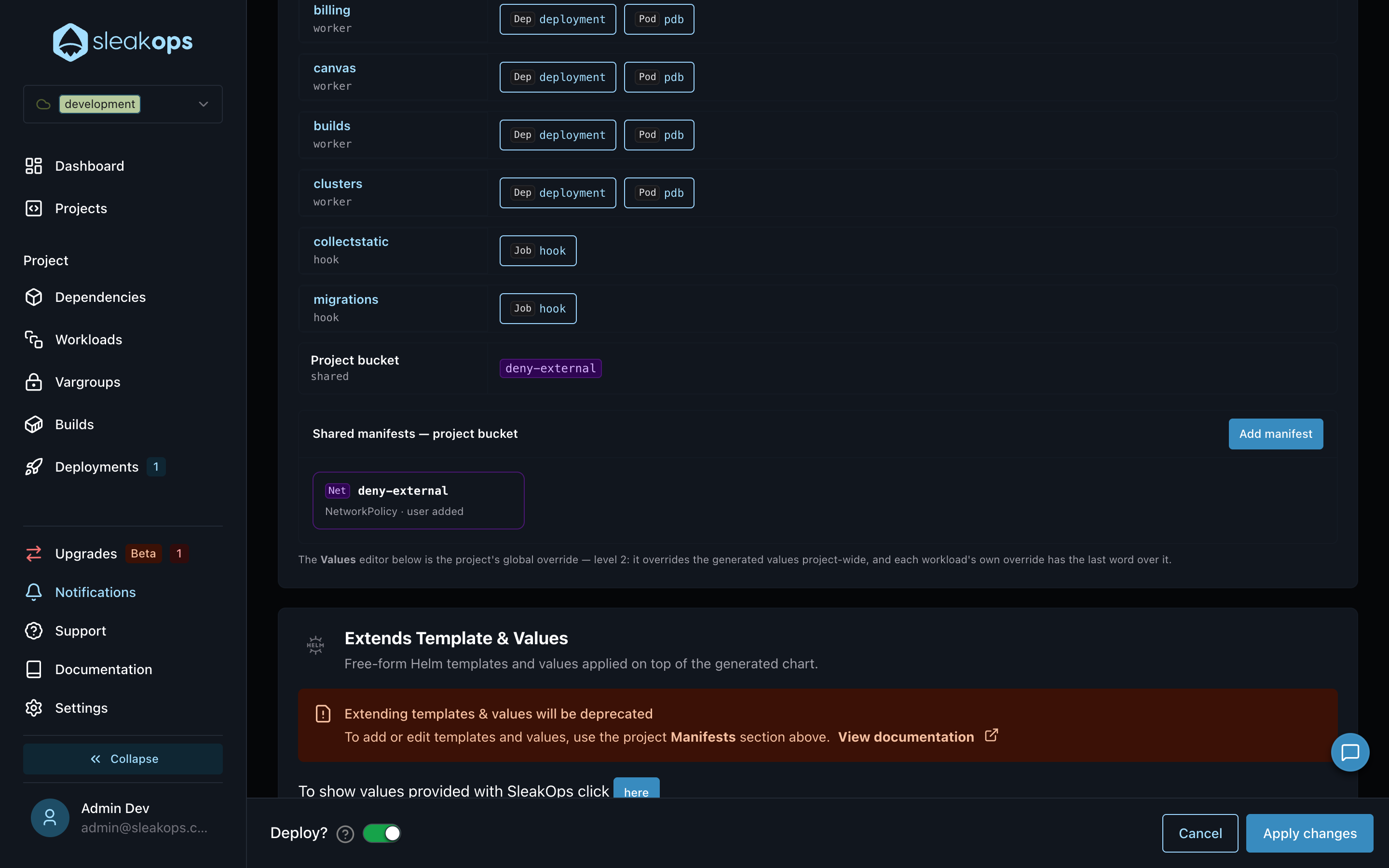
The Explorer at the top of the section lists every Workload of the Project with its manifests, and the project bucket at the end. Clicking a Workload opens its Advanced view, and clicking a manifest opens the editor in place.
The filter searches both name and kind. A Workload with no matches collapses out of the list instead of showing an empty lane; if nothing matches anywhere (including the bucket), you'll see a "No manifests match" message. Workload types without a dedicated Advanced view yet show as disabled rows.
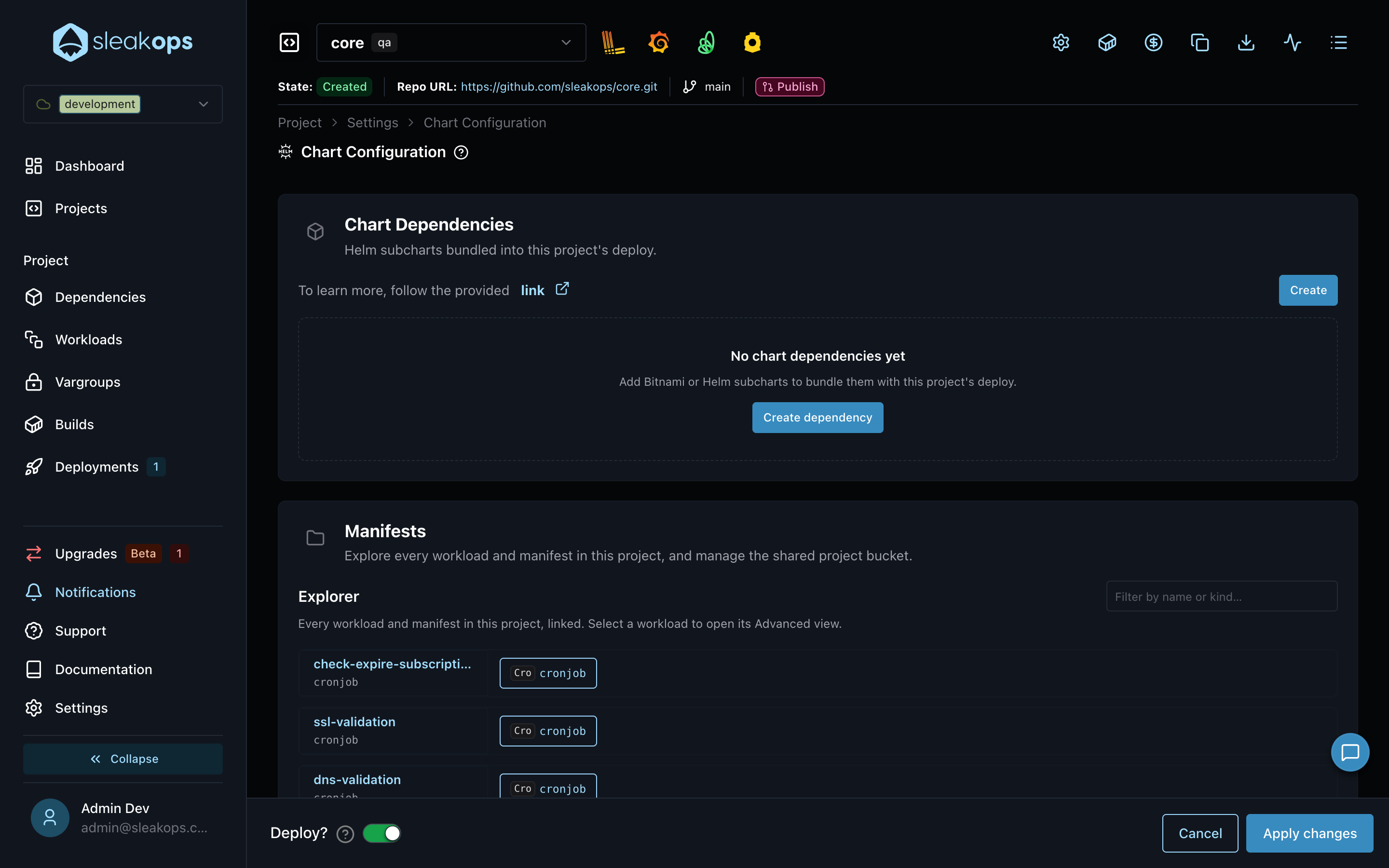
The free-form Templates editor of Chart Configuration no longer exists: custom resources are added as manifests, and the section below Manifests is now Extends Values, which only holds the project global values. The Extra Templates a Project had were migrated to manifests automatically — see Extra Templates.
Base template updates
When you customize a manifest, your copy is pinned: SleakOps never overwrites it, even when the base template it came from gets improvements. When a newer base version exists, the editor shows an update available badge and a banner ("Base template vN available — your copy is customized from vM. It will not be overwritten.") with a View diff button. Close the banner with × to keep your version as it is.
View diff opens the YAML tab in compare mode: your manifest (still editable) on the left, the read-only SleakOps base on the right.
- Red lines are your copy's lines that differ from the base.
- Green lines are the base's lines that differ from your copy — including what the new base adds.
Compare mode has two actions in the YAML toolbar: Exit compare, and — for customized manifests only — Reset to base, which discards your structural edits, restores the latest SleakOps base template and turns the manifest back into managed. Form values are not affected — they only fill variables. Reset is only available from compare mode; there is no reset button in the editor header.
You don't have to wait for an update-available banner to diff against the base — every manifest with a base template (managed or customized) has a Compare with base button in the YAML tab toolbar that opens the same compare mode.
Disabling and deleting
- Disable (the Enabled switch): the manifest is skipped on the next deploy but keeps its configuration. If the resource was already deployed, the next deploy removes it from the cluster.
- Delete: the manifest will no longer be deployed, and SleakOps will not re-create it on future seeds or base-template updates. You can add an equivalent manifest back later.
Switching a WebService's networking schema to Internal automatically disables every ingress manifest for it — you'll see the Disabled badge appear without touching anything yourself. Switching back to Public or Private only re-enables the ingress manifests that this automatic switch disabled; if you had manually disabled one before switching to Internal, it stays disabled and you need to re-enable it yourself.
Deleting or resetting asks for confirmation first: the dialog spells out the consequence (the manifest won't be re-created on future seeds; a reset discards your structural edits) and its confirm button is labeled with the action — Delete manifest / Reset to base.
Deploying your changes
Every content change made from a Workload's Manifests tab — including edits to project bucket manifests opened from its Project-shared manifests strip — respects the Deploy? switch on the toolbar:
- On — a deployment is triggered right after each save.
- Off — changes accumulate as pending changes and are deployed when you publish them.
Changes made from the Manifests section of Project → Settings → Chart Configuration (adding, editing, disabling or deleting a manifest there) are always registered as pending changes: that section has no Deploy? switch of its own, and the Deploy? switch at the bottom of the page only applies to Apply changes on the Values editor.
Layout actions on the graph — see The manifest graph — never go through this switch.
FAQs
Can I modify the templates SleakOps generates?
Yes. Open the Workload's Advanced view, click the manifest and edit its YAML. Your copy becomes customized and is never overwritten by SleakOps.
What happens to my existing Extra Templates?
They were migrated to manifests automatically, one manifest per YAML document: a document that redefines a resource SleakOps already generates for a Workload became that Workload manifest's customization, and every other document became a project bucket manifest. The free-form Templates editor is gone — add and edit those resources as manifests. See Extra Templates for details.
Can I deploy resources from a CRD?
Yes — choose Custom… as the Kind when adding a manifest and set the CRD's apiVersion/kind. The manifest saves regardless; the CRD must be installed in the cluster (for example, Keda's ScaledObject requires the Keda Addon), otherwise the deploy fails with the corresponding Helm error.
Why can't I change the namespace of a manifest?
Each Project environment deploys into its own Kubernetes Namespace. Manifests always deploy to the environment's namespace — a different value is rejected to keep environments isolated.
What's the difference between disabling and deleting a manifest?
Disabling keeps the manifest and its configuration but skips it at deploy time — flip the switch back to re-include it. Deleting removes it for good: SleakOps won't re-create it on future updates, though you can always add a new manifest with the same content.
Who can edit manifests?
Viewers see the graph and the YAML in read-only mode; rendering a Preview needs at least the Editor role. Editors can also drag nodes to rearrange the graph, but cannot create, edit, disable, delete or reset a manifest — those actions require the Admin role.