Upgrades
Upgrades is where SleakOps surfaces infrastructure changes the platform plans to apply to your accounts — version bumps, configuration updates, resource reorganizations. Review what's scheduled, read the manual steps each one requires, run an upgrade ahead of its date, or move it inside the allowed window.
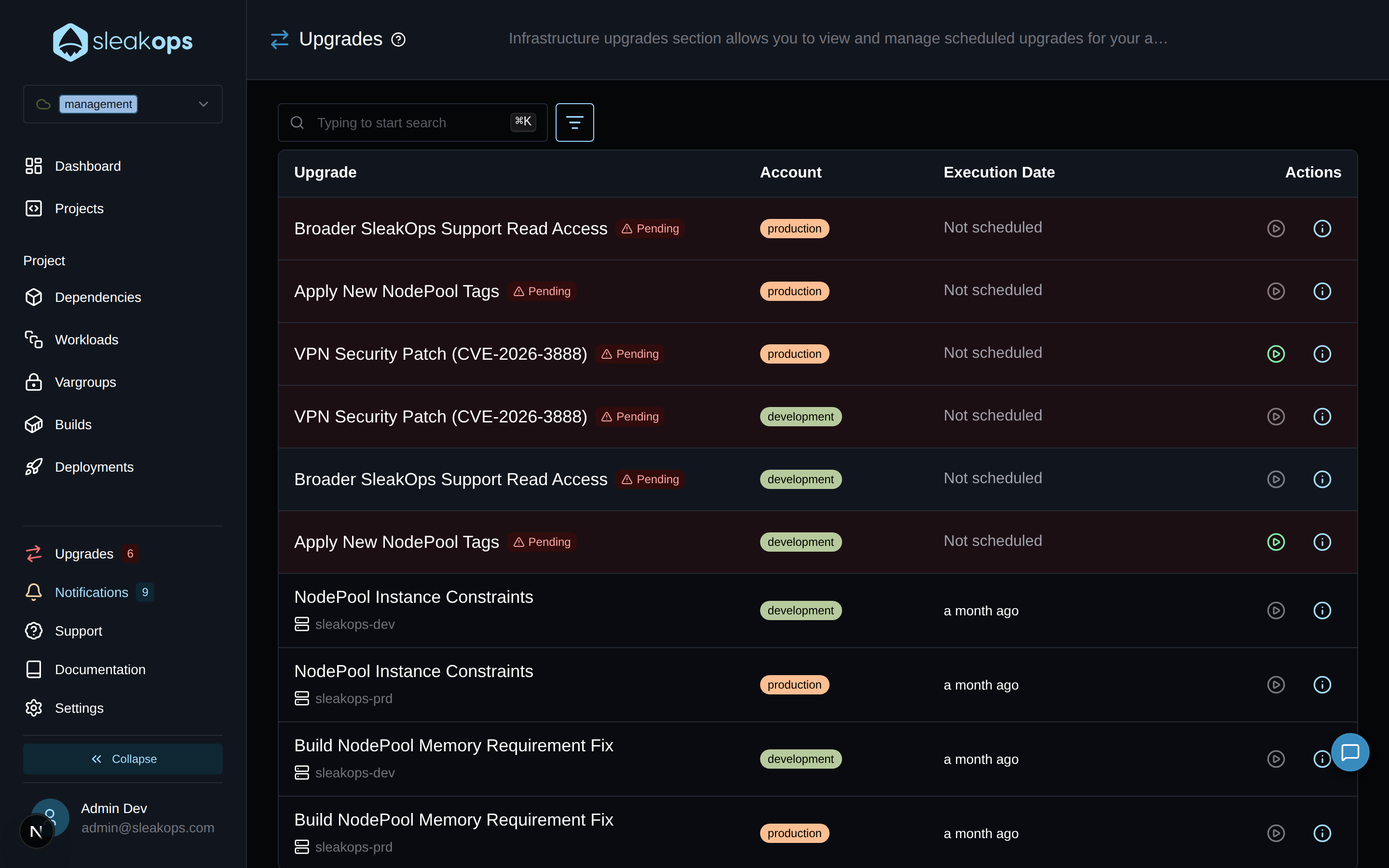
Upgrades are created by SleakOps. You act on the ones queued for your accounts — you can't create or cancel them from the panel.
Where to find Upgrades
Upgrades live at /upgrades/, with a dedicated entry in the sidebar footer for Admin and Editor users.
When at least one upgrade is Pending, the sidebar icon turns red and shows a counter with the number of pending upgrades across every account.
Reading the Upgrades list
The list shows upgrades across every account your role can access — it ignores the account selected in the top bar.
| Column | Description |
|---|---|
| Upgrade | Title and current state. When the upgrade targets a specific resource (Cluster, NodePool, Service), its icon and name appear under the title. |
| Account | The account the upgrade will run against. |
| Execution Date | Scheduled date while Pending, actual execution time otherwise. Hover for the exact timestamp. |
| Actions | View details, Execute, and (when applicable) Review instructions. |
Filter the list by State (Pending, In Progress, Completed, Error), Account, or Model from the toolbar. Deep links from other sections (e.g. from a specific Cluster) arrive with the filter pre-applied.
States
| State | Meaning |
|---|---|
| Pending | Scheduled but not yet started. You can execute it now or move its scheduled date. |
| Running | Execution is in progress. The upgrade can't be cancelled or rescheduled. |
| Completed | Finished successfully. |
| Error | Execution failed. The drawer shows the error, and you can retry from the panel. |
Transitions: Pending → Running → Completed. From Running, on failure the upgrade lands in Error; from Error you can retry, which moves it back to Running.
Executing an upgrade
Two ways:
- From the list — click the green play icon in the row's Actions column.
- From the drawer — open the upgrade and click Execute in the header. A popover lets you pick Execute Now or update the schedule.
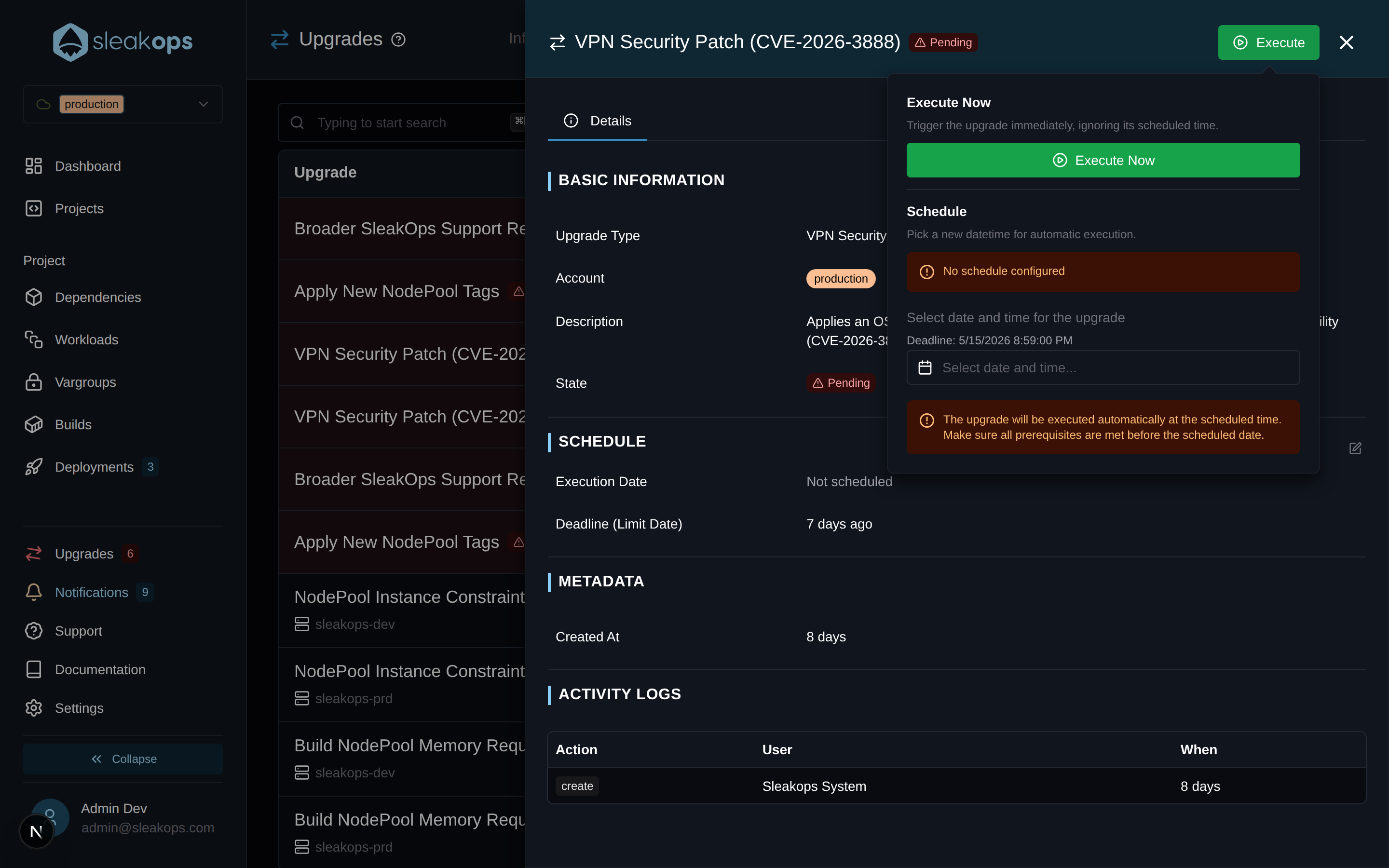
Choosing Execute Now opens a confirmation modal. When the upgrade has prerequisites, they appear as a warning banner inside the modal — finish those manual steps before confirming.
The Execute button is disabled when:
- Your role isn't authorized for this upgrade type.
- The upgrade is already Running or Completed.
- An older Pending upgrade of a different type exists on the same account — that one needs to clear first.
- Your company's subscription isn't active.
Once confirmed, the upgrade is queued immediately and can't be stopped.
Rescheduling an upgrade
Open the drawer, click Execute in the header, and use the Schedule section of the popover — or click the schedule block inside the Details tab.
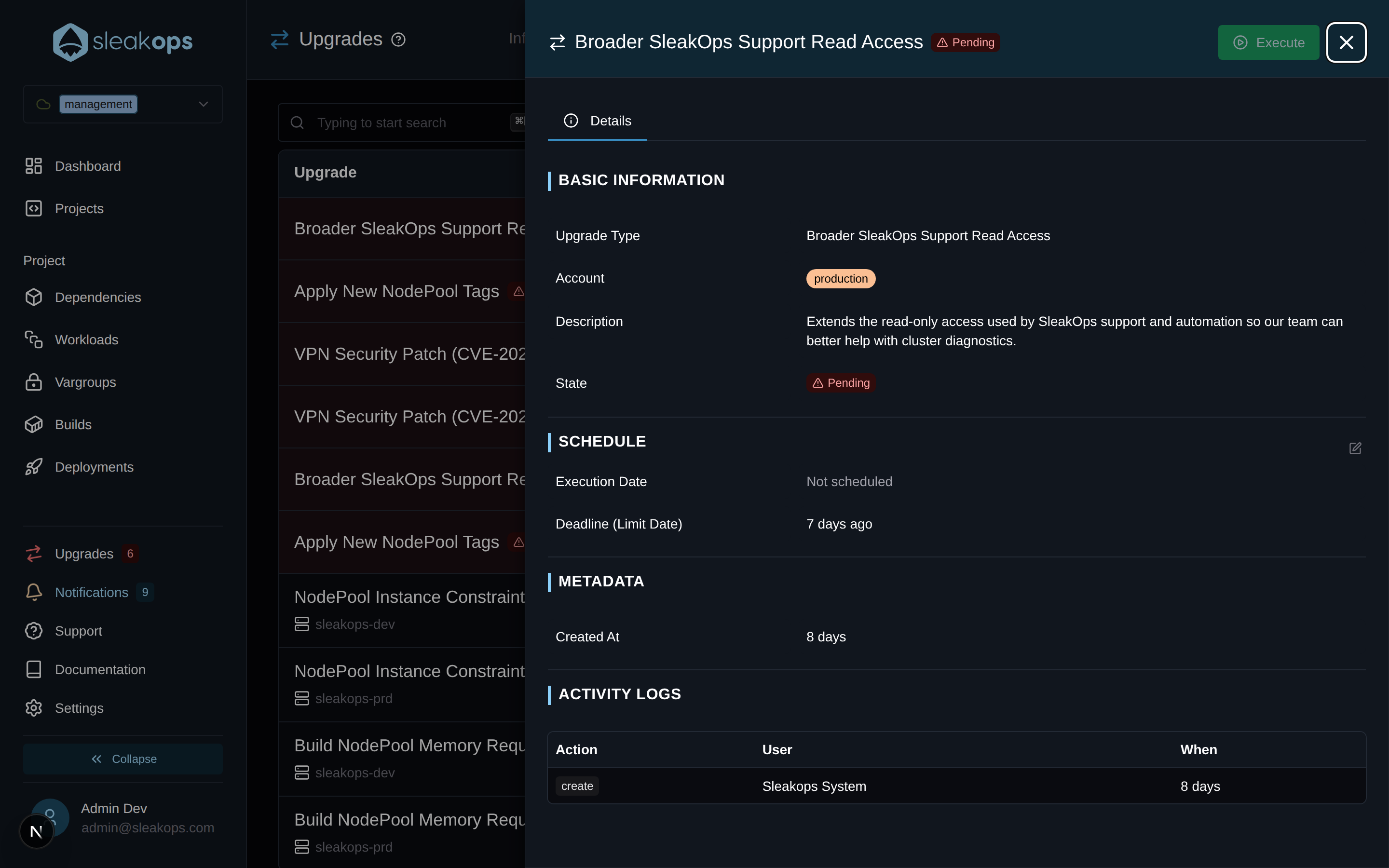
The new date must fall inside [now + 1 hour, deadline], where the deadline is the upgrade type's Limit Date. The picker disables anything outside that window.
When you have several Pending upgrades of different types on the same account, you can reorder upgrades of the same type freely, but you can't move one across a different-type upgrade — its relative position is fixed.
The Upgrade drawer
Click any row to open the drawer. It has two tabs:
Details
Basic information (entity name, type, account, description, state), schedule (Execution Date and Deadline, editable inline), metadata (creation date, parameters), and the activity log — every execution and every schedule change with user and timestamp.
Instructions
Only present when the upgrade type ships prerequisites or postrequisites — numbered steps to complete before executing and steps to verify after it completes.
While the upgrade is Pending, the Instructions tab label turns orange to remind you to read it before clicking Execute. From the list, a list icon next to the Execute button jumps straight into this tab.
When an upgrade fails
On failure the upgrade enters the Error state and the drawer shows the message at the top of the Details tab. Open the upgrade and click Execute again to retry — the retry runs the same operation with the same parameters.
SleakOps doesn't perform automatic rollbacks. If an upgrade needs to be undone, contact support.
FAQs
Why can't I create an upgrade?
SleakOps defines and schedules upgrades centrally. You see the upgrades the platform queues for your accounts and decide when within the allowed window — execute immediately or push the date inside [now, deadline]. Creating upgrade types is reserved for the SleakOps team.
Can I cancel a scheduled upgrade?
No. Cancellation isn't available — every queued upgrade will eventually run. What you can do is reschedule it inside the allowed window or, once the deadline approaches, execute it ahead of time at a moment that fits your maintenance window. If a specific change is no longer relevant for your account, contact the SleakOps team.
What's the difference between "Pending" and "Running"?
Pending means the upgrade is queued but hasn't started yet — you still have control over the timing. Running means execution has begun and the platform owns the operation; it can't be cancelled or rescheduled from this point on.
My upgrade is locked — what does "scheduling locked" mean?
When a company doesn't have an active SleakOps subscription, its upgrades are kept in the list for audit but cannot be executed or rescheduled. A warning banner is shown inside the drawer. Reactivate the subscription to unlock them.
How do I see who executed or rescheduled an upgrade?
Open the drawer's Details tab and scroll to Activity Logs. Every execution and every schedule change is recorded with the acting user and timestamp.
Are upgrades the same as Django database migrations?
No. "Upgrades" here refers to infrastructure changes SleakOps applies to your AWS/Kubernetes resources — version bumps, configuration updates, resource reorganizations. Application-level database migrations belong to your codebase and run as part of your deployments.