Import a project
This page covers importing an existing resource. If you haven't connected your AWS infrastructure to SleakOps yet, start with Install SleakOps on your infra.
SleakOps can adopt a deployment already running in a cluster as a managed Project instead of building it from scratch. Import discovers the Helm releases the cluster runs outside SleakOps and maps one of them into workloads and manifests.
Prerequisites
- An admin user in SleakOps.
- The import feature enabled for your company.
- Manifests enabled for your company: the imported project is built from Manifests. Without it, the Import Project button doesn't appear and SleakOps rejects the import with "Importing a project requires the service manifests feature."
Discover a release to import
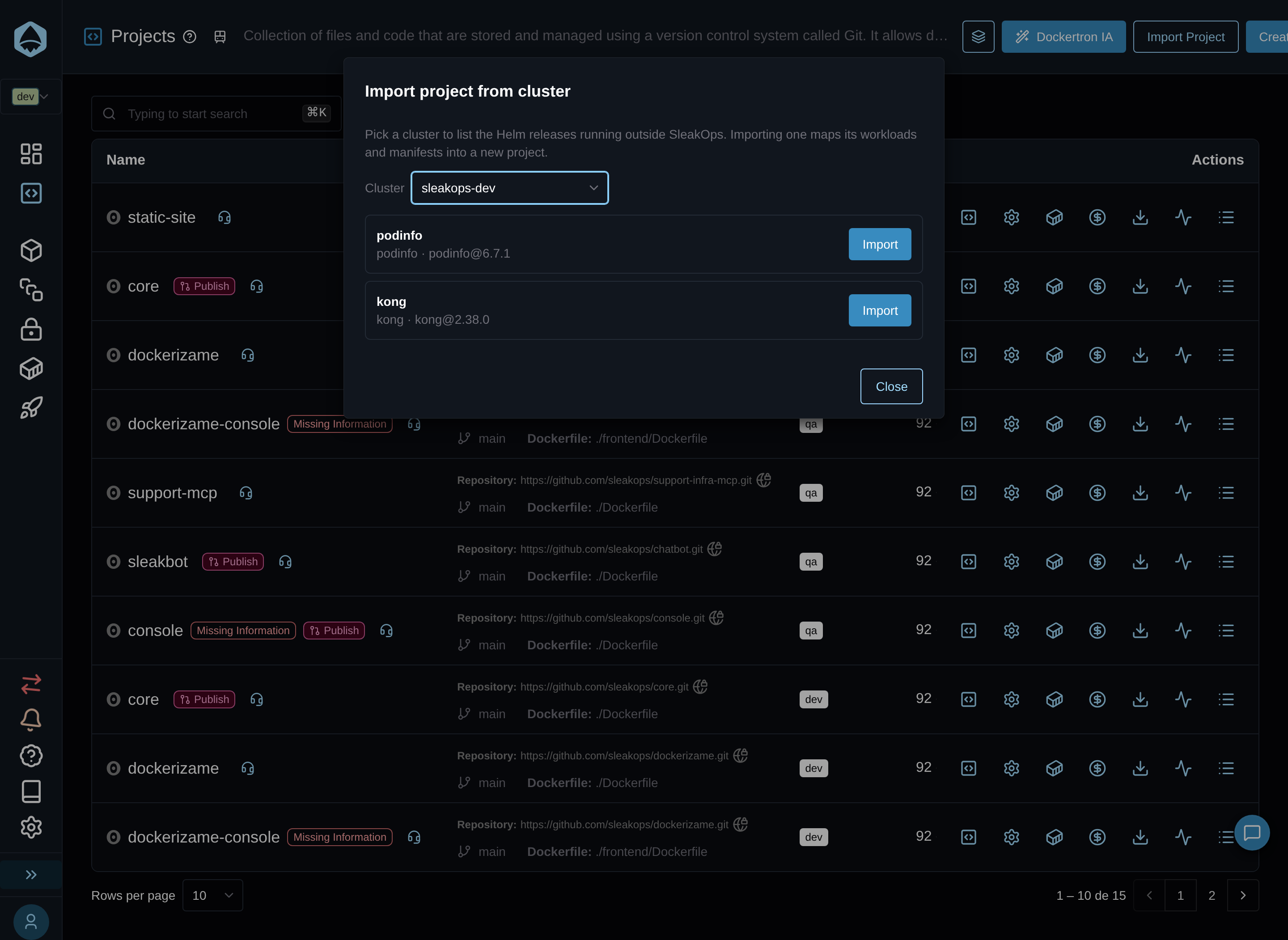
On the Projects screen, click Import Project next to Create. This opens the same discovery dialog used to import addons: pick the cluster to inspect, and SleakOps lists the Helm releases running there that aren't already managed by SleakOps. Click Import on one to continue.
Preview: what SleakOps detects
SleakOps maps the release's documents deterministically into workloads — web service, worker, cron job, or hook — plus any manifests shared across the whole project. Anything it couldn't map lands in a Not included list, each with a reason. When AI mapping is available, an optional Improve mapping with AI button re-runs the mapping with an LLM as an alternative; once both exist, Use AI mapping and Use deterministic mapping switch between them.
If the release's namespace has Secrets, an Environment variables section lists them with a checkbox each. The ones the workloads read come already checked. Each selected Secret becomes a Var Group of the new project — environment variables, or files at the path where the release mounted them. SleakOps copies the values server-side; they're never shown in the dialog.
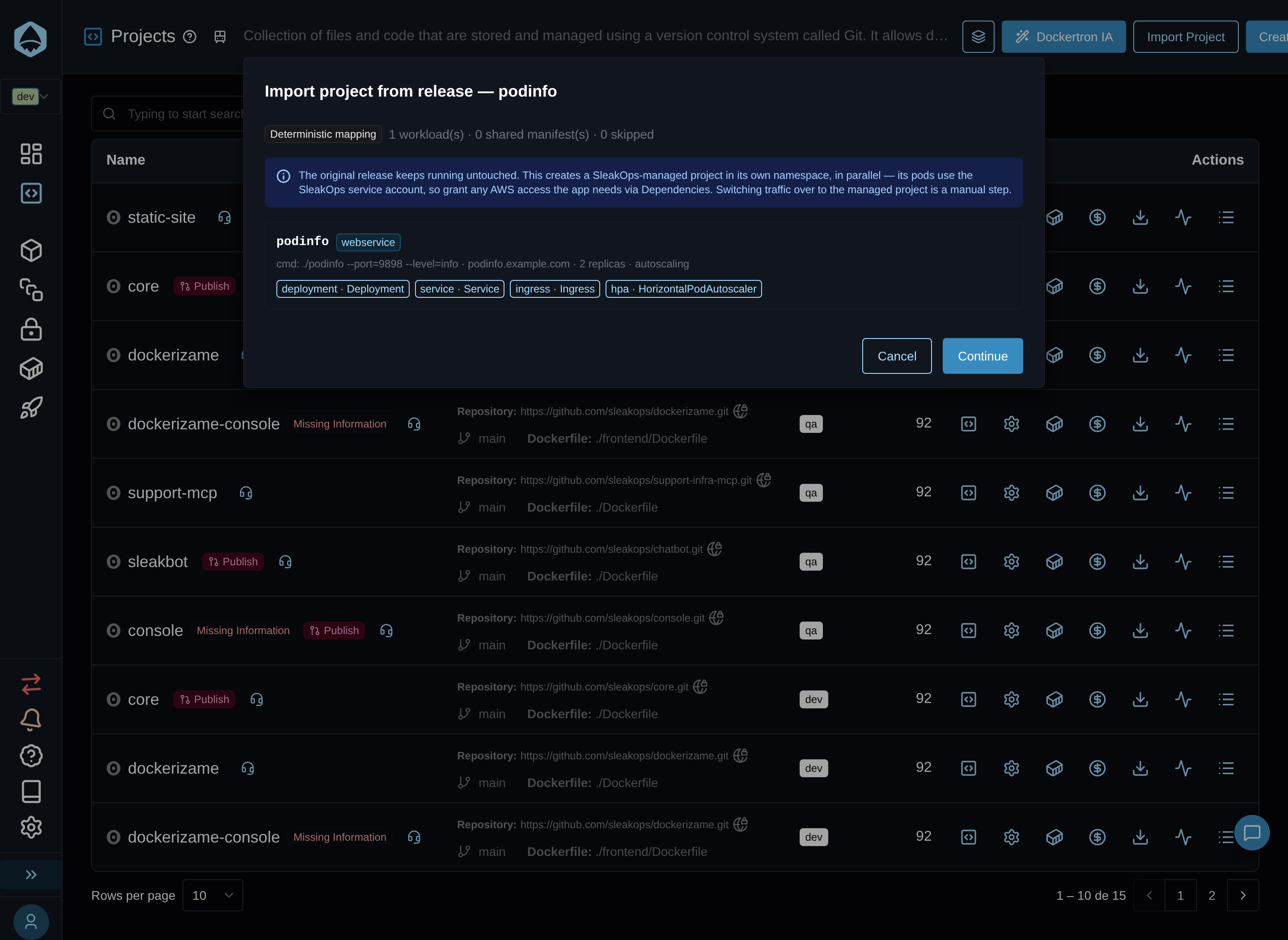
The original release keeps running untouched. This creates a SleakOps-managed project in its own namespace, in parallel — its pods use the SleakOps service account, so grant any AWS access the app needs via Dependencies. Switching traffic over to the managed project is a manual step.
Complete the project details
Click Continue to fill in the new project:
| Field | Description |
|---|---|
| Project name | Prefilled from the release name, slugified. Editable. |
| Environment | The Environment of the chosen cluster to deploy into. |
| Nodepool | The node pool of the chosen cluster to run the workloads on. |
| Branch | The Git branch to build from. |
| Repository | The Git repository to build from — requires a Git integration configured. |
| Build method | Docker or Buildpack. |
| Dockerfile path | Only for the Docker method. |
Environment and Nodepool list the real resources of the cluster you picked in the discovery step.
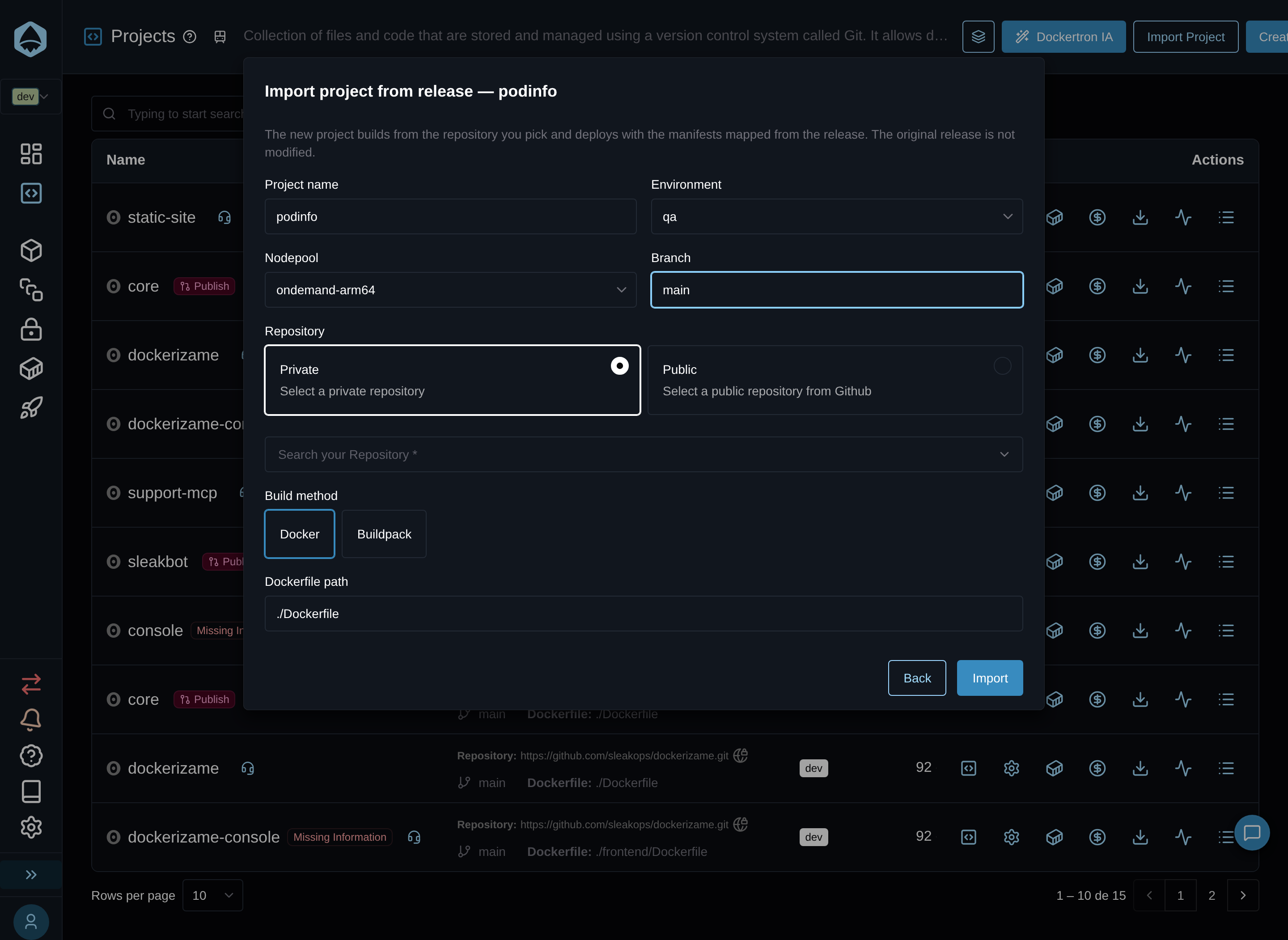
Click Import to create the project.
What stays manual
The new project builds from the repository you pick and deploys with the manifests mapped from the release. The original release is not modified — it keeps serving traffic on its own until you decide to switch over. Routing real traffic to the managed project is a manual step, outside SleakOps.
FAQs
What happens to the original release?
Nothing. The original release keeps running untouched in its own namespace. SleakOps creates a new, separate project alongside it — switching traffic over to the managed project is a manual step you take when you're ready.