Import the cluster
With an account's network configured, SleakOps can register an existing EKS cluster of that account without recreating it — the last step of the import journey.
Prerequisites
- An admin user in SleakOps.
- The import feature enabled for your company.
- An account already in created state, with its network configured (Configure the network).
Install SleakOps in the cluster
On the Clusters list, admins see an Install SleakOps in Cluster button next to Create. It only appears once at least one account is in created state.
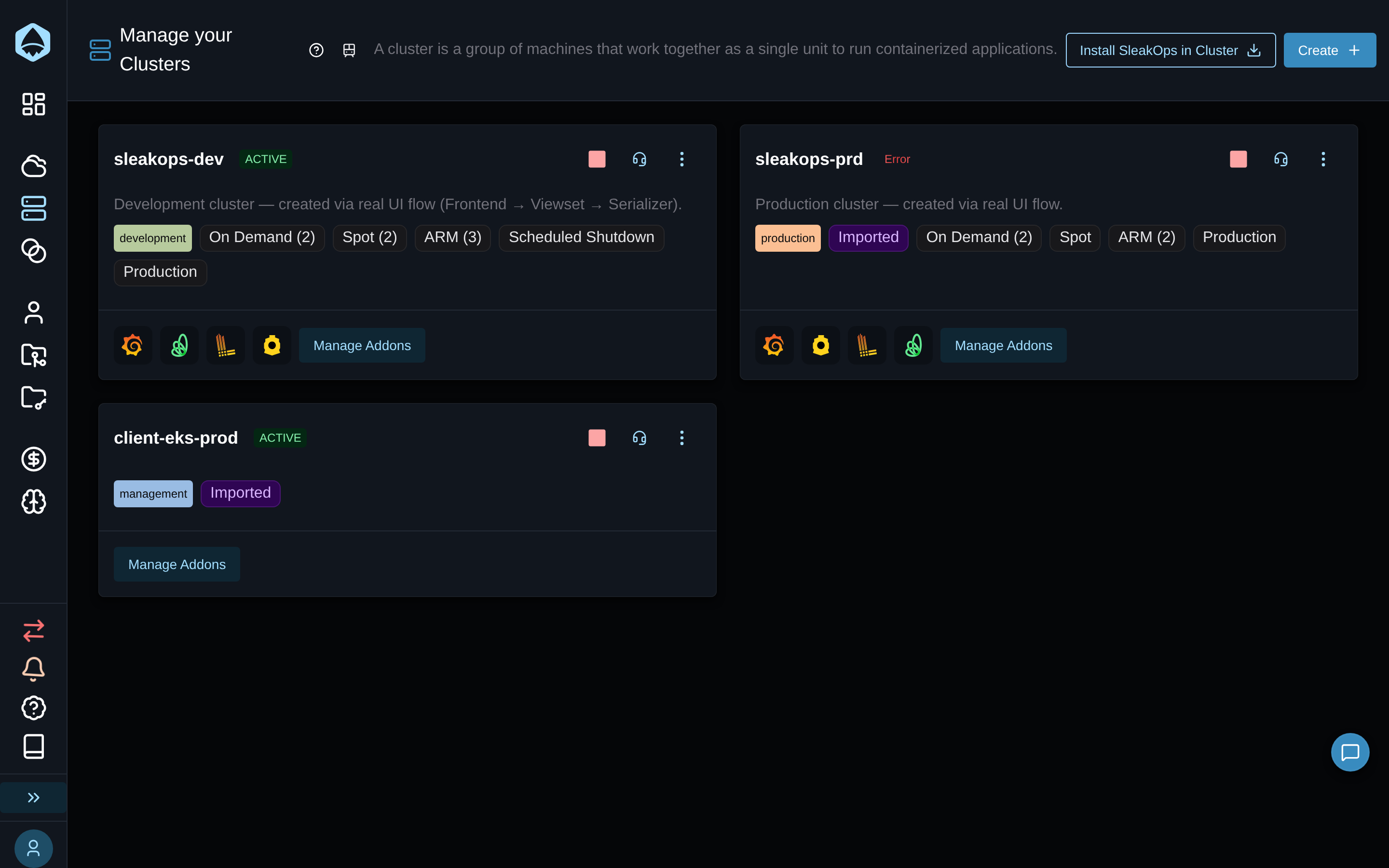
The button opens a 4-step dialog.
1. Select account
Choose the account of the EKS cluster. Only accounts in created state are listed.
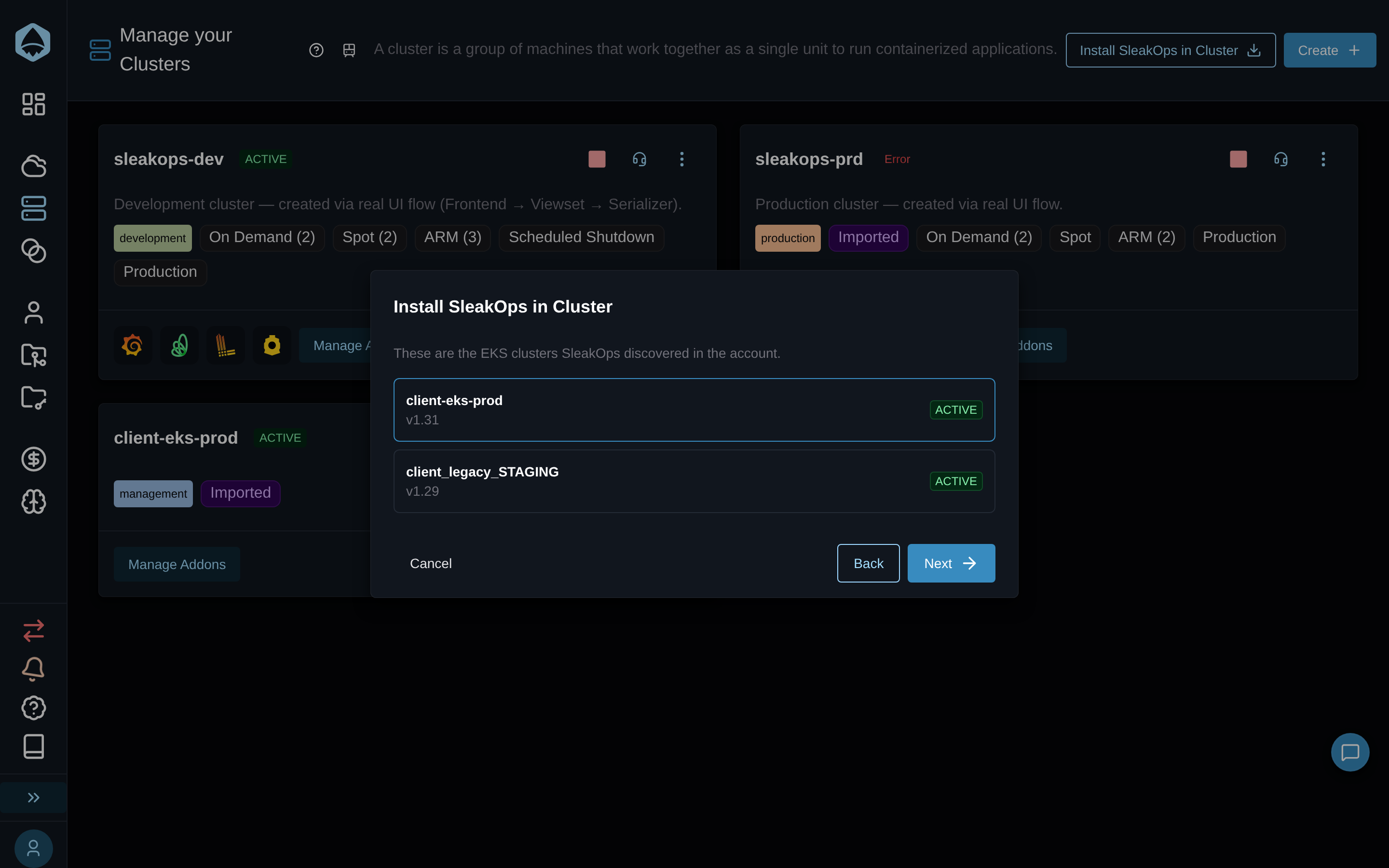
2. Select cluster
SleakOps lists the EKS clusters it discovered in that account — name, Kubernetes version and status (ACTIVE, etc.). Pick the cluster to import.
3. Cluster endpoint access
SleakOps operates inside the cluster through its Kubernetes API, so it needs to reach the cluster endpoint. If the endpoint is already public with an allowlist, SleakOps adds its own outbound addresses to it, keeping every entry already there. If the endpoint isn't publicly reachable, SleakOps enables it and restricts it to its own outbound addresses.
Check I allow SleakOps to access the endpoint of this cluster to continue — it's required.
4. Ingress classes
Set the Private IngressClass name (e.g. alb-internal) and Public IngressClass name (e.g. alb-internet-facing) of the cluster. SleakOps routes private and public traffic through them. It inspects the cluster's IngressClasses and prefills both fields when it can identify them ("SleakOps detected these IngressClasses in your cluster. Change either name if it is not the one you want."); otherwise you enter both names as they exist in the cluster. Both fields stay editable either way.
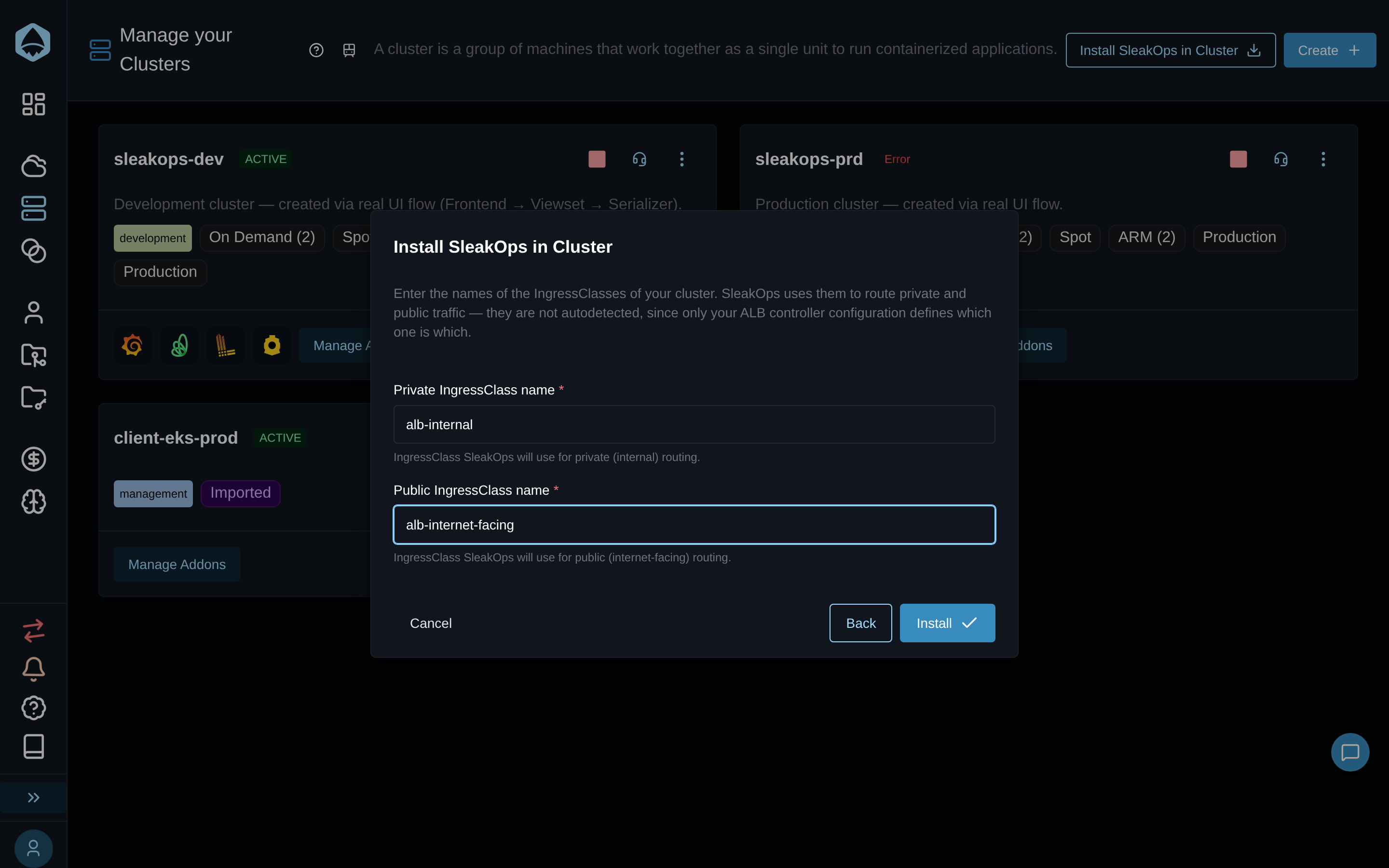
Click Install to start the import.
Installation progress
While the import runs, SleakOps reads the cluster metadata (OIDC issuer), sets up the account VPN if it doesn't exist yet, creates the dedicated sleakops namespace, and maps its roles into the cluster by installing the AWS Auth essential addon, which keeps every entry already in your aws-auth ConfigMap. The IngressClass names from step 4 are stored in the cluster's configuration.
You can close the dialog and follow the progress from the clusters list — it keeps refreshing while the import is in progress.
Once it finishes, SleakOps can reach the cluster endpoint and is ready to operate inside it. You can then install the essential addons you need (Metrics Server, ExternalDNS) from the cluster detail and import its node pools.
The Imported badge
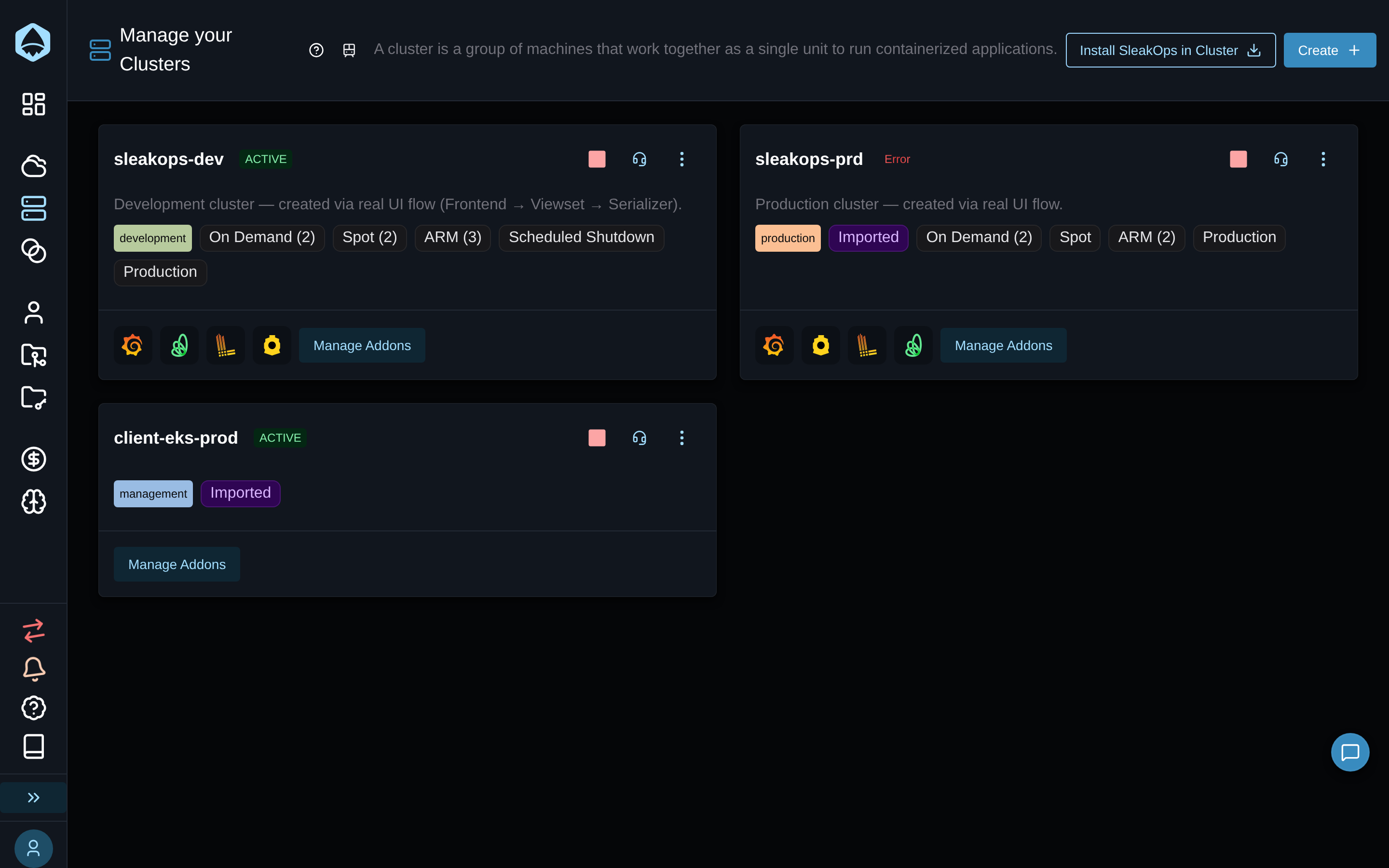
An imported cluster shows an Imported badge on its card in the clusters list, distinguishing it from clusters SleakOps created from scratch. Hovering over the badge shows: "Pre-existing EKS cluster imported into SleakOps".
Working with an imported cluster
Base node pool
The addons SleakOps runs on an imported cluster aren't pinned to any node pool until you choose one, so they run wherever your scheduler places them. While none is set, admins see a warning icon on the cluster card that leads to the cluster's Node Pools settings. There, the Base Node Pool card lists the cluster's live Karpenter node pools (with their architecture); pick one and confirm. A pool SleakOps doesn't manage yet is marked will be imported and is imported first. Addons already running don't move right away: each one picks up the new node pool the next time it's reapplied. Choosing Not pinned clears it. This setting needs the same access as node pool import (an admin user, with node pool import enabled for your company).
Creating Projects
When you create a Project in an Environment of an imported cluster, the Nodepool field lists the cluster's live Karpenter node pools by name, plus No node pool (workloads run unpinned and the cluster scheduler decides placement). Picking a pool shows an Architecture field: it's set and locked when the pool fixes a single architecture, and otherwise you choose (64-Bit) X86 or (64-Bit) ARM for your builds and workloads. If the live pools can't be listed, you can still create the Project unpinned.
Limits
- The Karpenter and Load Balancer essential addons can't be installed — node capacity and the ALB controller stay with the cluster owner. See Essential addons.
- Imported node pools can't be deleted from SleakOps yet: "This NodePool was imported from the cluster. Deleting an imported NodePool is not supported yet."
- Imported dependencies can't be edited from SleakOps.