Import a provider
A Provider in import mode connects SleakOps to an AWS Organization you already run, instead of creating a new one. This page covers how to create a provider in import mode and where it leads next.
Prerequisites
- The import feature enabled for your company. Without it, the import toggle doesn't appear.
When to use import mode
Use the default flow (Providers) when you want SleakOps to provision a new AWS Organization and accounts for you. Use import mode when you already operate AWS infrastructure and want SleakOps to manage it as-is — the accounts, network, and EKS cluster are connected rather than recreated.
Create the provider in import mode
-
Go to Settings > Providers and click Create. The provider wizard opens on the Basic Information tab.
-
Turn on the Install SleakOps in existing AWS infra toggle.
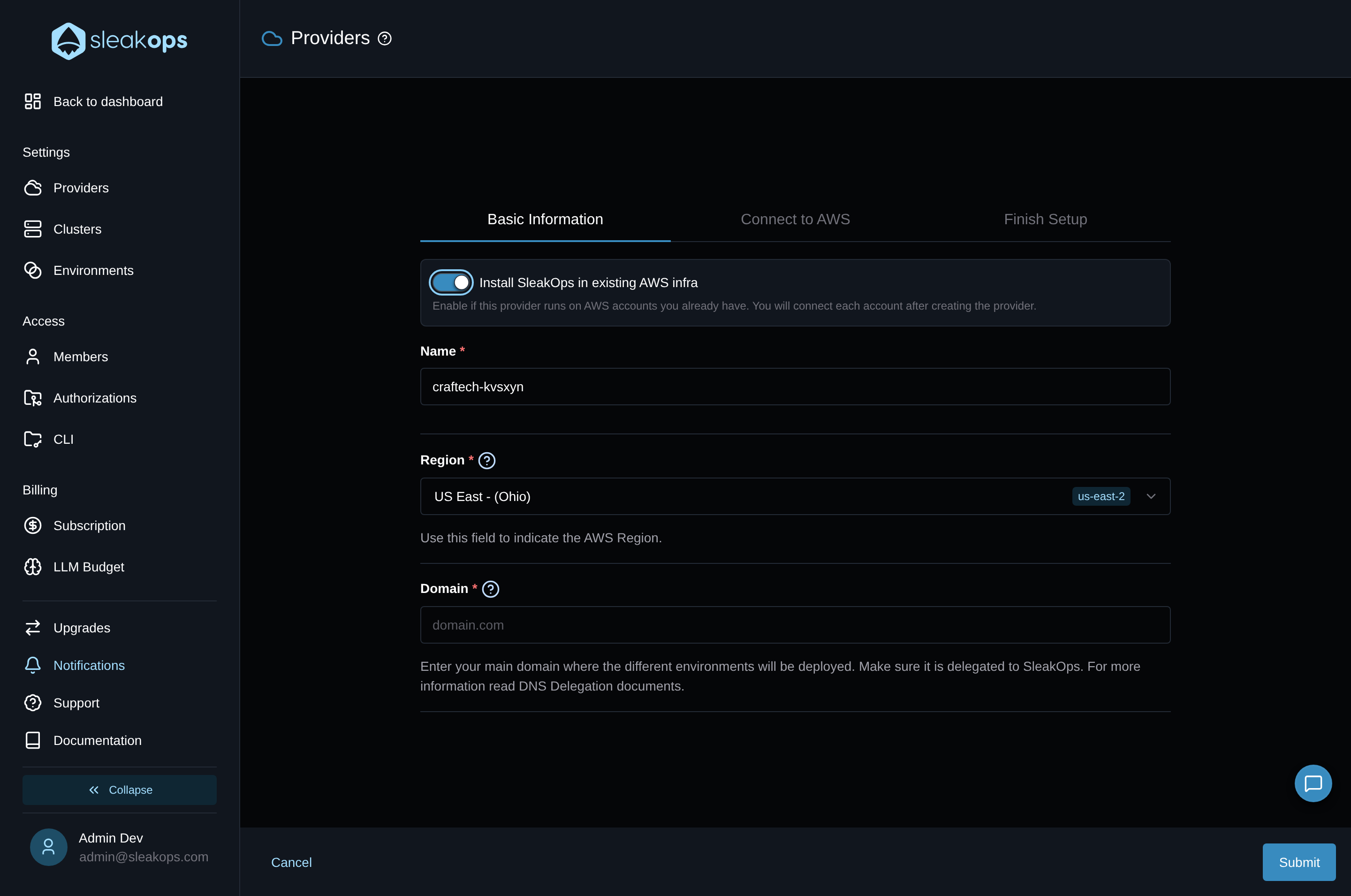
With the toggle on, the Email field is hidden — SleakOps reads the account email from your existing AWS setup instead. Name, Region, and Domain work the same as in the default flow.
-
Fill in Name, Region, and Domain, then click Submit to move to Connect to AWS. This tab and the CloudFormation role setup match the default flow — see Providers — with one addition: an optional box lets you run a CloudFormation stack once on your AWS organization root account to activate organization-level Cost Allocation Tags. Skipping it only disables organization-level cost tagging.
-
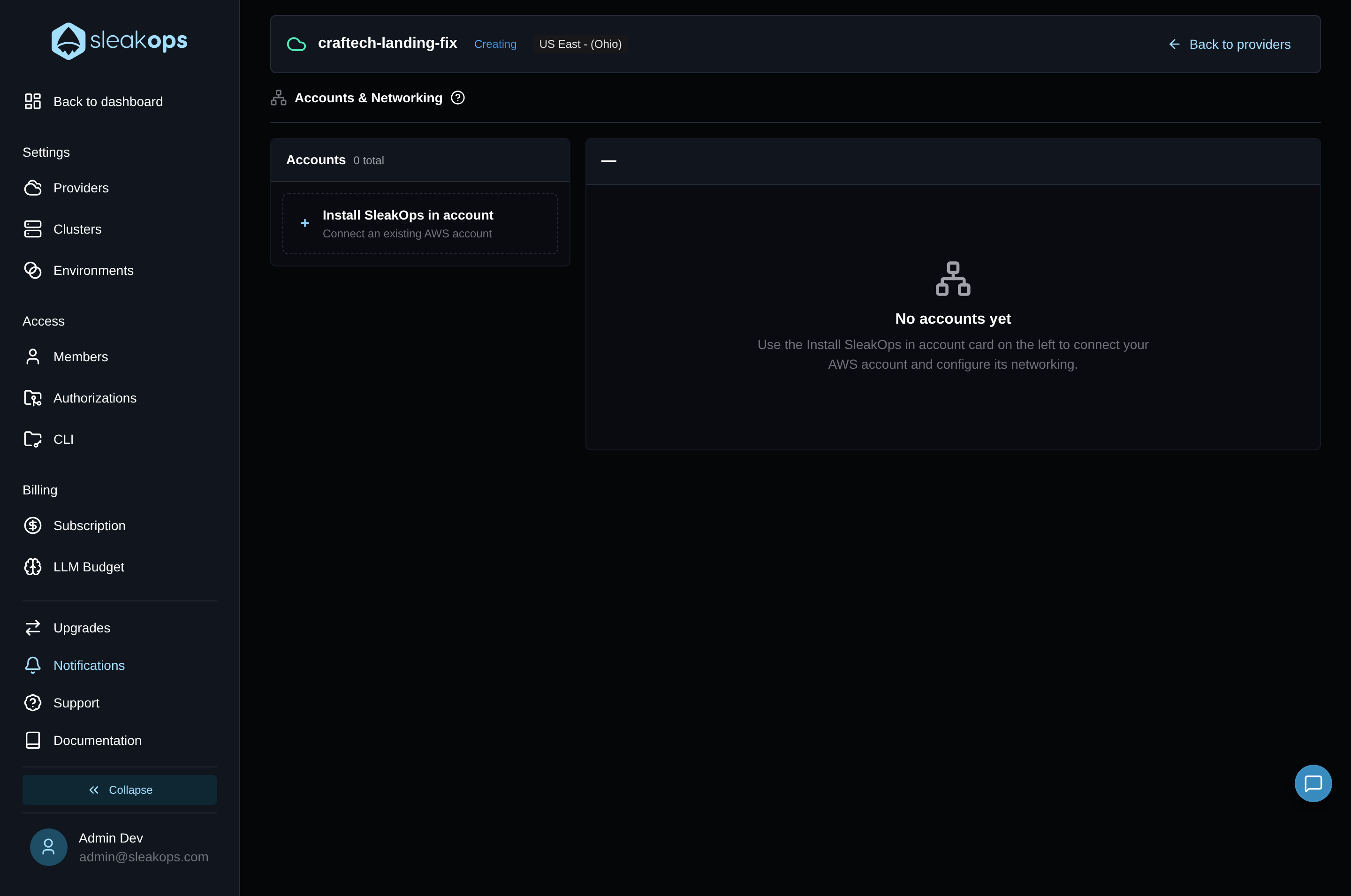
Once the provider finishes creating, SleakOps redirects you automatically to Accounts & Networking instead of the dashboard.
Next step
From Accounts & Networking, connect your existing AWS accounts to the provider.