Import an account
Once a provider is running in import mode, connect each existing AWS account you want SleakOps to manage from its Accounts & Networking section.
Prerequisites
- An admin user in SleakOps.
- The import feature enabled for your company.
- A provider created in import mode (Import a provider).
Declare an existing AWS account
-
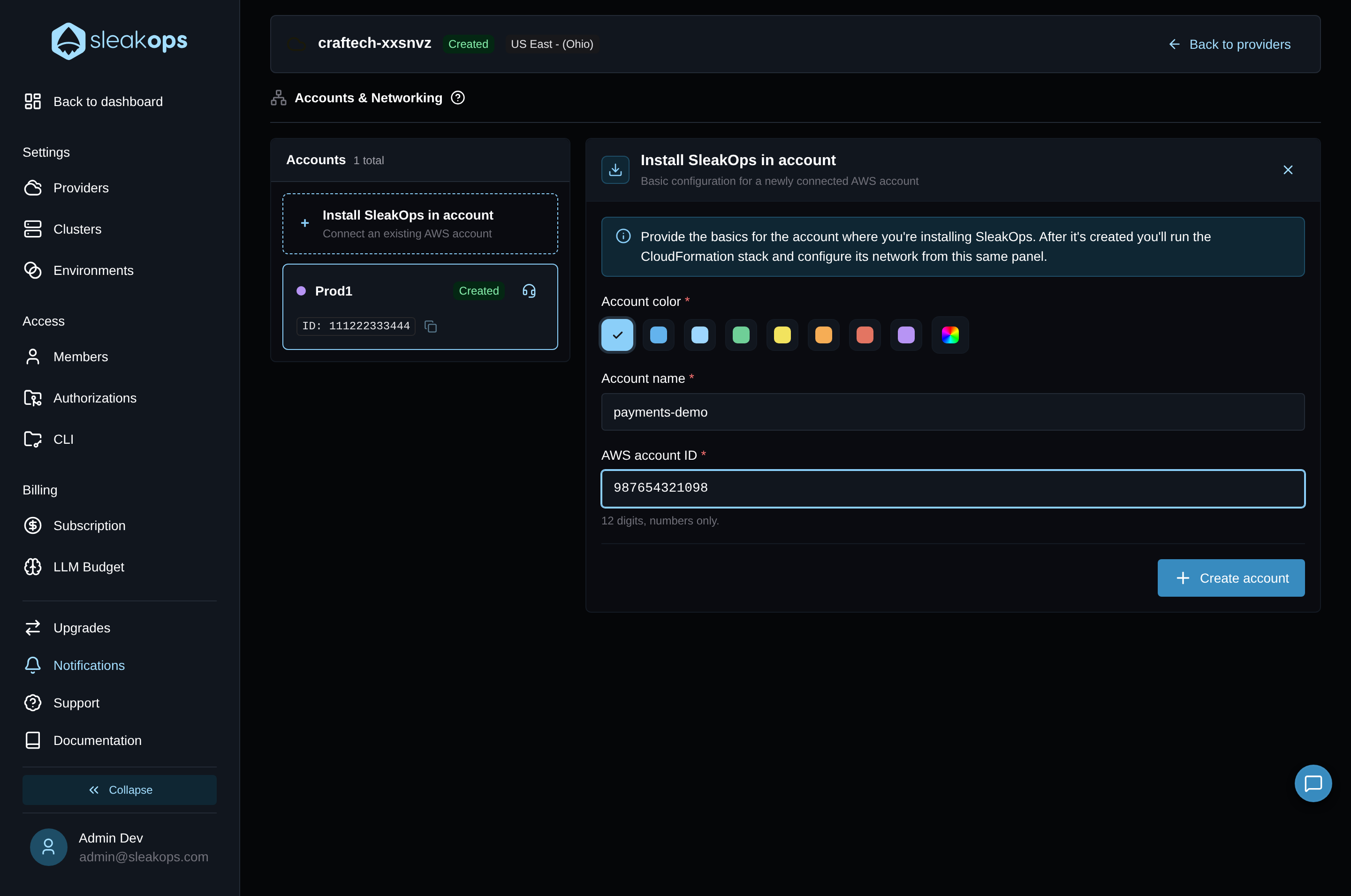
In Accounts & Networking, click the Install SleakOps in account card.
-
Fill in the three fields:
- Account color — pick one of the 8 preset swatches, or use the custom color picker to choose any other color.
- Account name — up to 20 characters (e.g.
payments-prod). - AWS account ID — the account's 12-digit numeric ID.
-
Click Create account. The account appears in the list on the left.
Run the CloudFormation stack
-
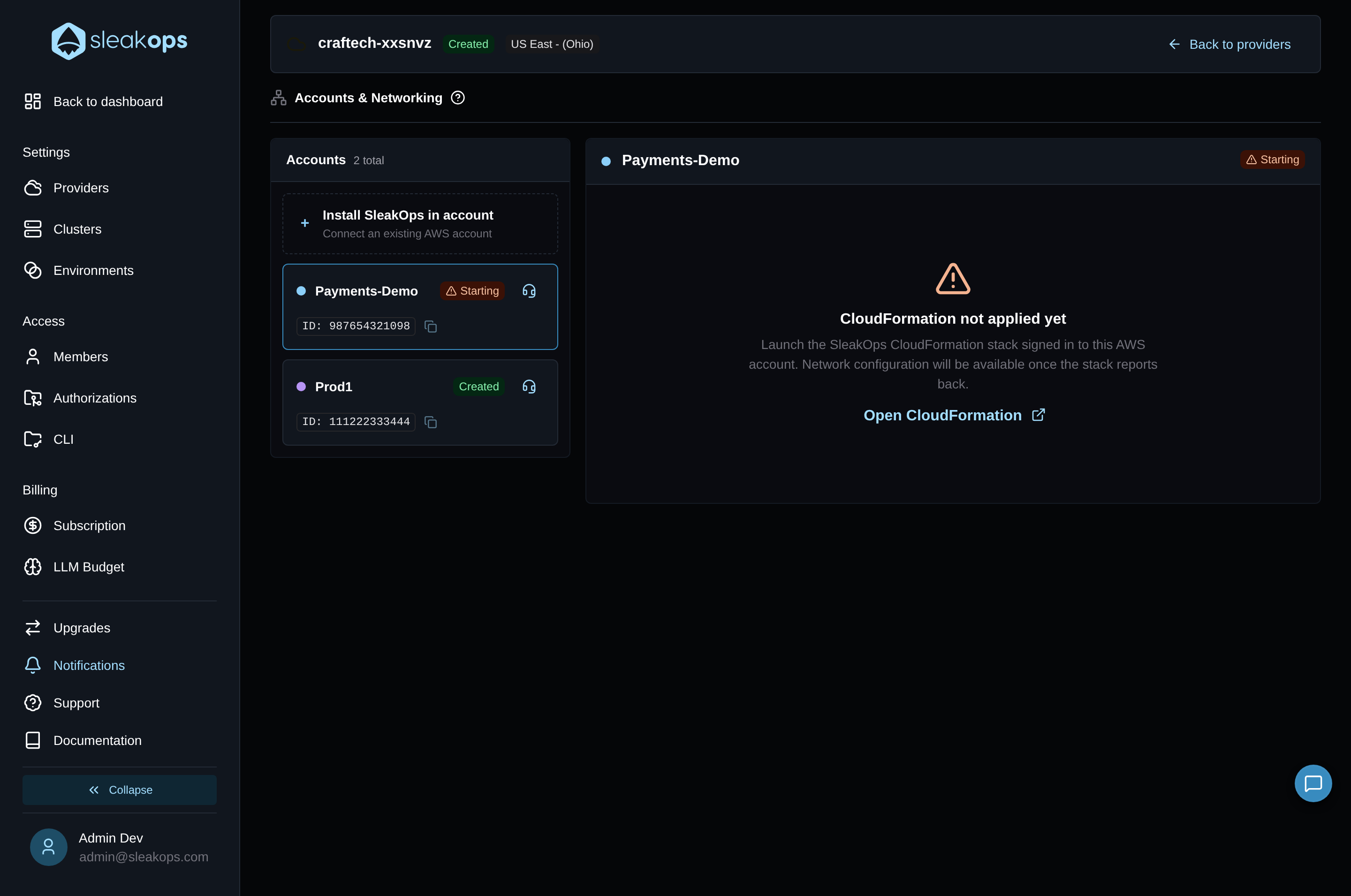
Select the new account in the list. Its detail panel shows CloudFormation not applied yet.
-
Click Open CloudFormation to launch the SleakOps CloudFormation stack. It opens in a new tab — run it signed in to this AWS account.
If the stack fails in AWS, click Open CloudFormation again: each click generates a new stack name and External ID, so you can launch the stack again without clashing with the failed one.
What happens next
Once SleakOps receives the stack's callback, the account is ready for network configuration.