How to Set Up VPC Peering Between AWS and MongoDB Atlas
Connect your AWS VPC to MongoDB Atlas using VPC Peering for private, low-latency database access — and learn when peering is the right choice and when to use alternatives.
Prerequisites
- A MongoDB Atlas account with a cluster at tier M10 or higher
- An AWS account with a VPC where your workloads run
- Project Owner role in MongoDB Atlas
- DNS hostnames and DNS resolution enabled on your AWS VPC
Let's Start
When to Use VPC Peering
VPC Peering is the right choice when:
- Your workloads run inside an AWS VPC in the same region as your Atlas cluster
- You need private connectivity — traffic never leaves the AWS backbone
- You're using Atlas clusters at tier M10 or higher
- Your resources run on EKS, EC2, or any service inside the VPC
VPC Peering is not available in these cases:
- Cluster tiers M0, M2, M5, or Serverless — these don't support peering
- Multi-cloud peering — Atlas doesn't support peering between different providers (e.g. GCP and AWS)
- Overlapping CIDRs — if your AWS VPC CIDR overlaps with Atlas's CIDR, peering can't be established
If any of the above applies to you, skip to Alternative: Whitelist your NAT Gateway IP.
Alternative: Whitelist your NAT Gateway IP
If peering isn't an option, you can allow Atlas connections from your VPC by whitelisting the public IP of your NAT Gateway:
- In the AWS Console, go to VPC → NAT Gateways and copy the Elastic IP associated with your NAT Gateway.
- In MongoDB Atlas, go to Network Access → IP Access List → Add IP Address.
- Enter the Elastic IP with a description like
NAT Gateway - production.
Your workloads connect to Atlas via the internet through the NAT — no peering required.
This approach has higher latency than peering but works with any cluster tier and requires no CIDR planning.
Step 1 — Gather Your AWS Information
You'll need the following values from your AWS account before configuring the peering connection in Atlas.
Get your Account ID
Click your username in the top-right corner of the AWS Console. Your 12-digit Account ID appears in the dropdown.
Get your VPC ID and CIDR
In the AWS Console, search for VPC and open Your VPCs. Select the VPC where your workloads run and note the VPC ID (starts with vpc-) and the IPv4 CIDR (e.g. 10.0.0.0/16).
| Field | Where to find it |
|---|---|
| Account ID | Top-right dropdown in the AWS Console |
| VPC ID | VPC → Your VPCs (starts with vpc-) |
| VPC CIDR | VPC → Your VPCs → IPv4 CIDR column |
| Application VPC Region | The AWS region where your VPC lives |
Step 2 — Create the Peering Connection in Atlas
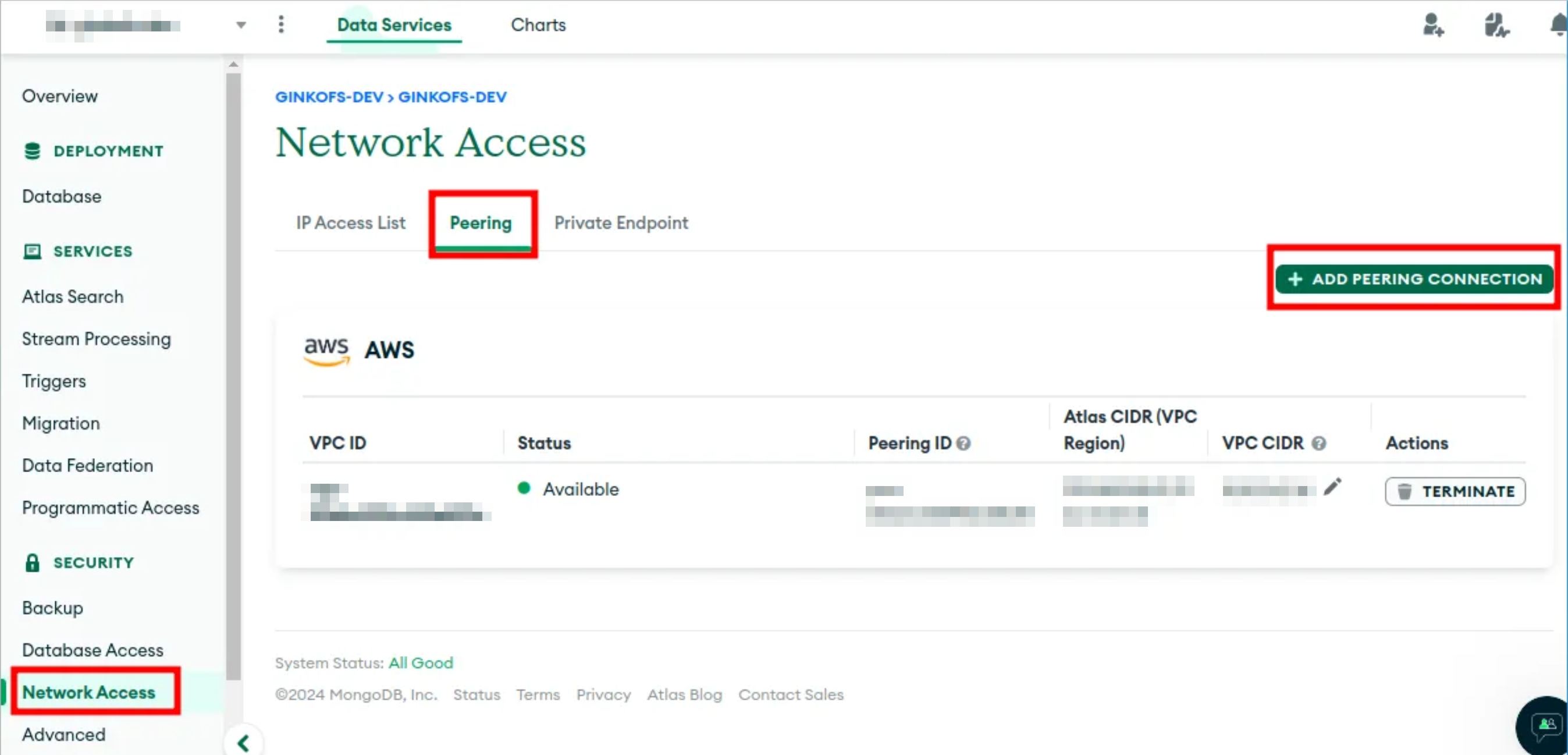
- In MongoDB Atlas, go to Network Access in the left sidebar.
- Click the Peering tab, then Add Peering Connection.
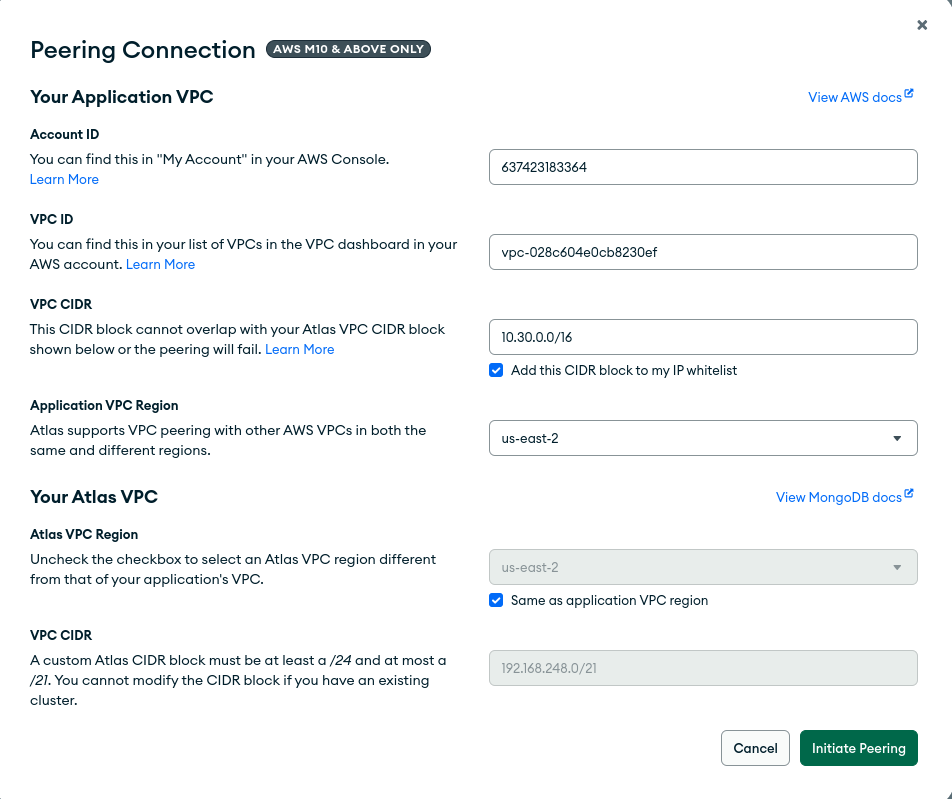
- Select AWS as the cloud provider and fill in the form with the values from Step 1:
- Account ID — your 12-digit AWS account number
- VPC ID — the VPC ID starting with
vpc- - VPC CIDR — your VPC's IP range
- Application VPC Region — the AWS region
- Atlas VPC CIDR — Atlas will suggest a range (e.g.
192.168.240.0/21); keep it unless it conflicts with your network
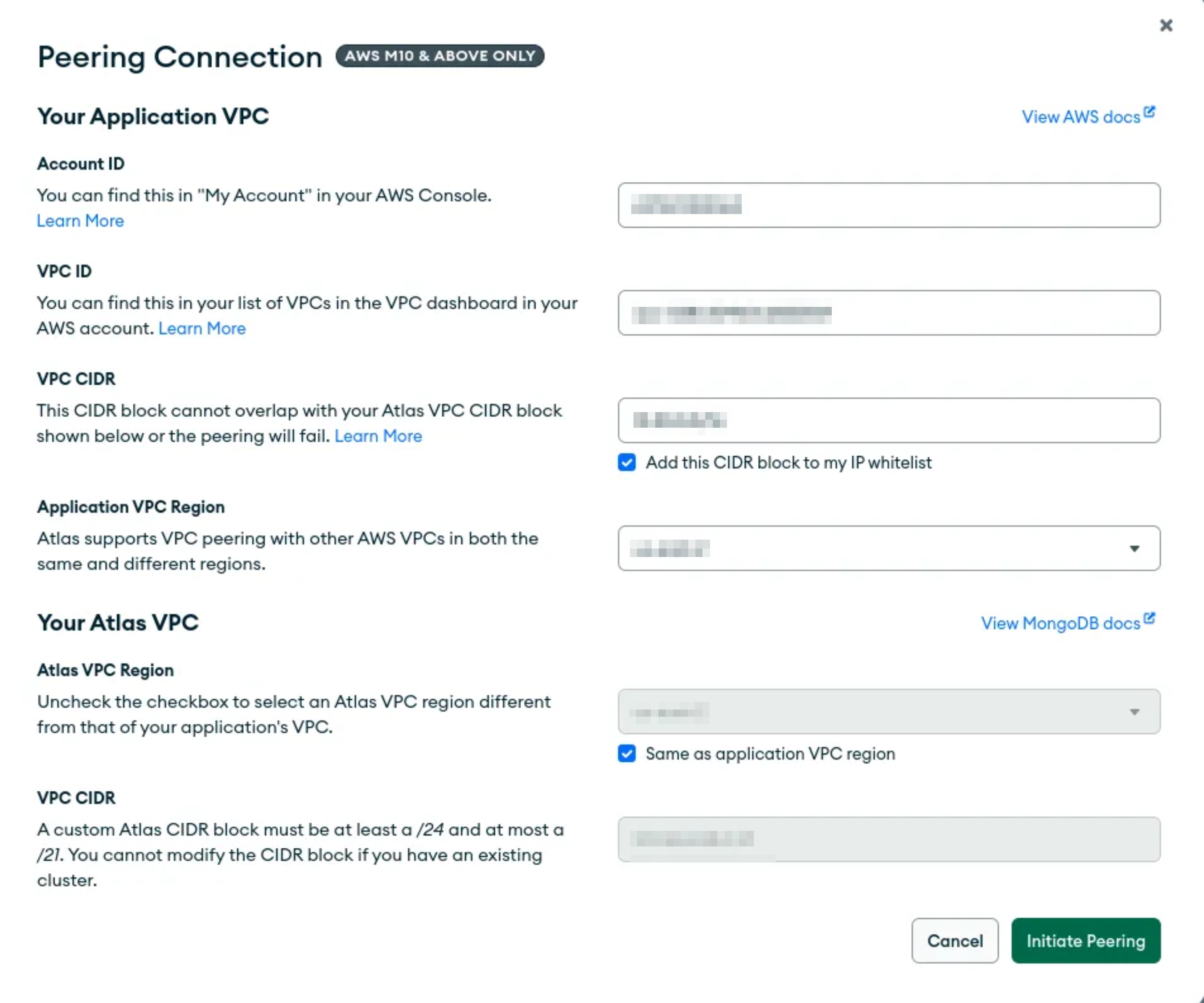
- Click Initiate Peering.
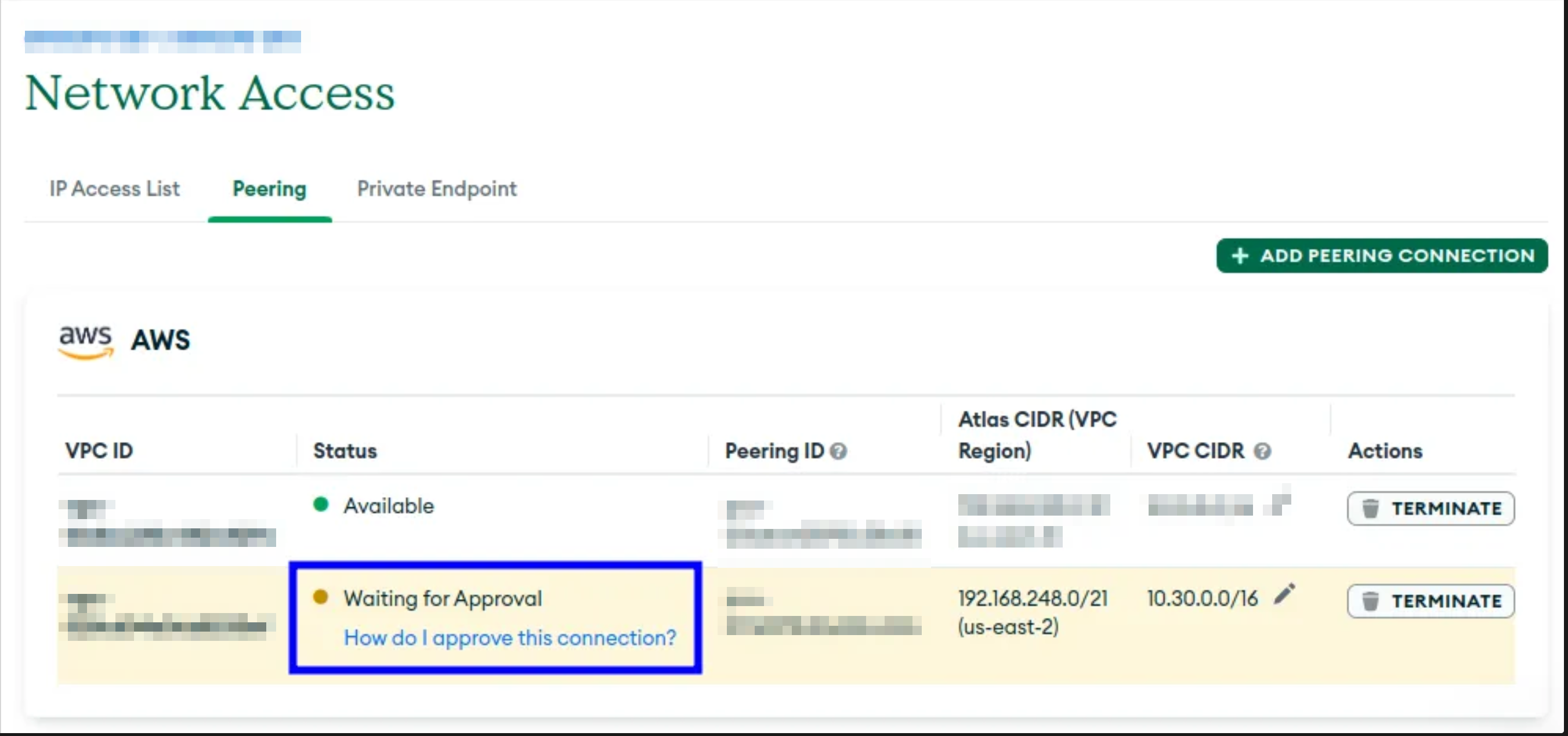
Atlas will show the connection with status "Waiting for Approval". The request must now be accepted from the AWS Console.
Step 3 — Accept the Peering Request in AWS
- In the AWS Console, go to VPC → Peering connections.
- You'll see a connection with status "Pending acceptance".
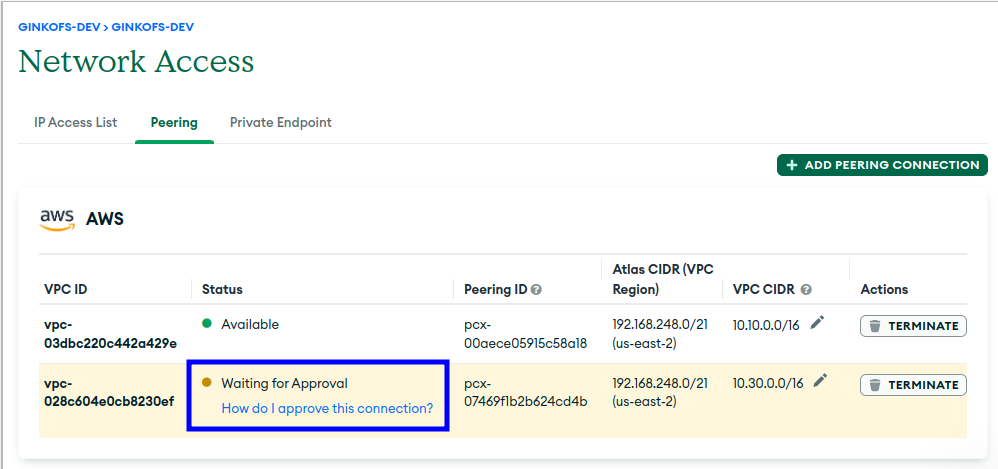
- Select the connection, click Actions → Accept request.
- Review the details in the modal (VPCs, CIDRs, regions) and confirm.


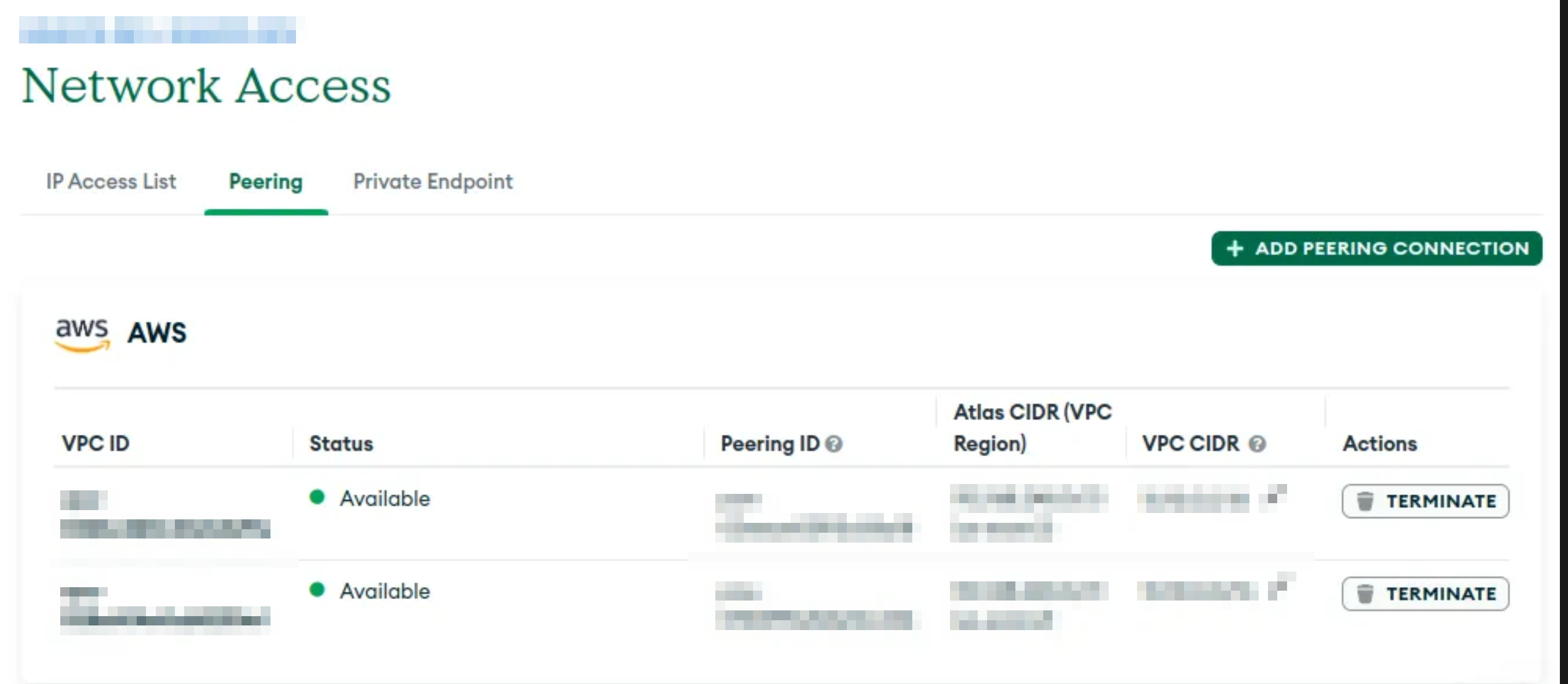
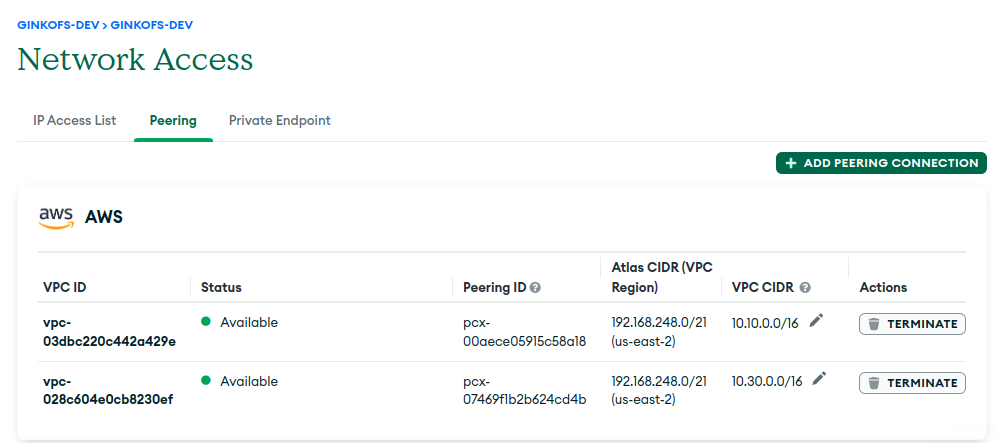
Once accepted, the connection status changes to "Active" in AWS and "Available" in Atlas.
Step 4 — Configure Route Tables
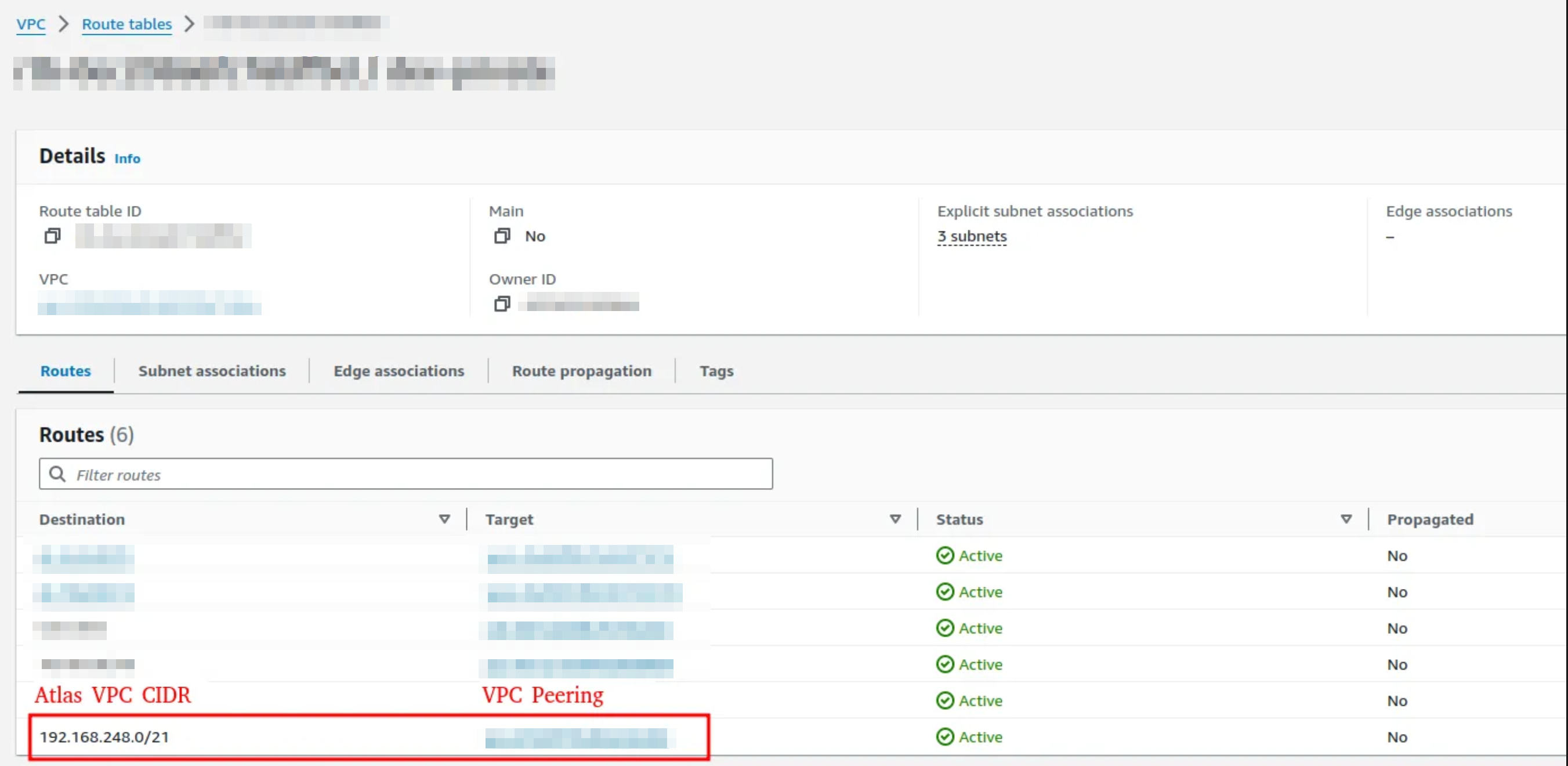
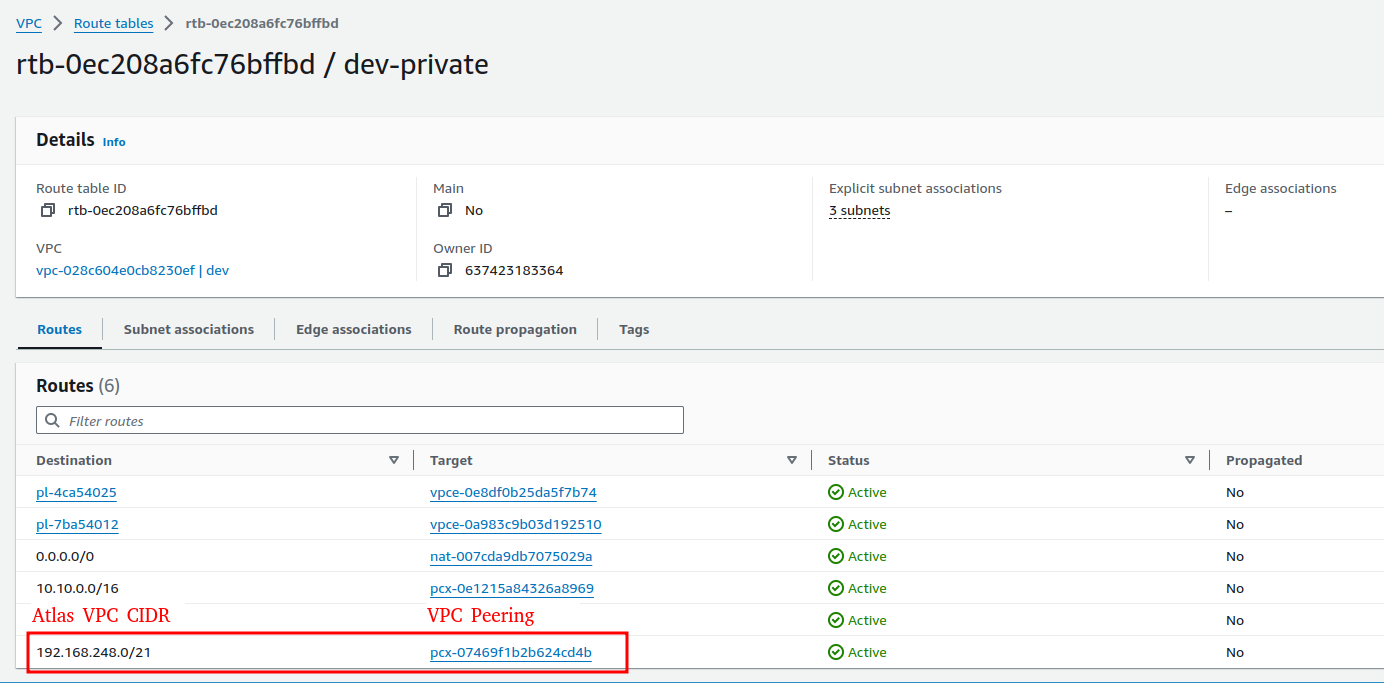
For traffic to flow through the peering connection, you need to add a route to the Route Table of the subnets where your workloads run.
- In the AWS Console, go to VPC → Route Tables.
- Select the Route Table associated with your workload subnets.
- Open the Routes tab and click Edit routes → Add route:
- Destination: the Atlas VPC CIDR (e.g.
192.168.240.0/21) - Target: select Peering Connection and choose the connection you just created
- Destination: the Atlas VPC CIDR (e.g.
- Click Save changes.
Step 5 — Configure a Security Group
Create a Security Group that allows outbound traffic to MongoDB Atlas ports:
- In the AWS Console, go to EC2 → Security Groups → Create security group.
- Add an outbound rule:
| Type | Protocol | Port range | Destination |
|---|---|---|---|
| Custom TCP | TCP | 27015 – 27017 | Atlas VPC CIDR (e.g. 192.168.240.0/21) |
- Attach this Security Group to the EC2 instances, EKS node groups, or other resources that need to connect to Atlas.
If you're using EKS with Karpenter, add the following tag to the Security Group so Karpenter discovers and applies it automatically:
| Key | Value |
|---|---|
karpenter.sh/discovery | YOUR_CLUSTER_NAME |
Step 6 — Add Your VPC CIDR to the IP Access List
Creating the peering connection alone is not enough — you also need to allow access at the network level.
In MongoDB Atlas, go to Network Access → IP Access List → Add IP Address and enter your AWS VPC CIDR (e.g. 10.0.0.0/16).
Step 7 (Optional) — Connect Through a VPN
If your team accesses MongoDB Atlas through a VPN like Pritunl, standard DNS resolution won't work over peering by default. Follow these steps to enable it:
Enable Custom DNS in Atlas
In Atlas, go to Project → Settings and enable "Using Custom DNS on AWS with VPC peering".

Use the Private Peering connection string
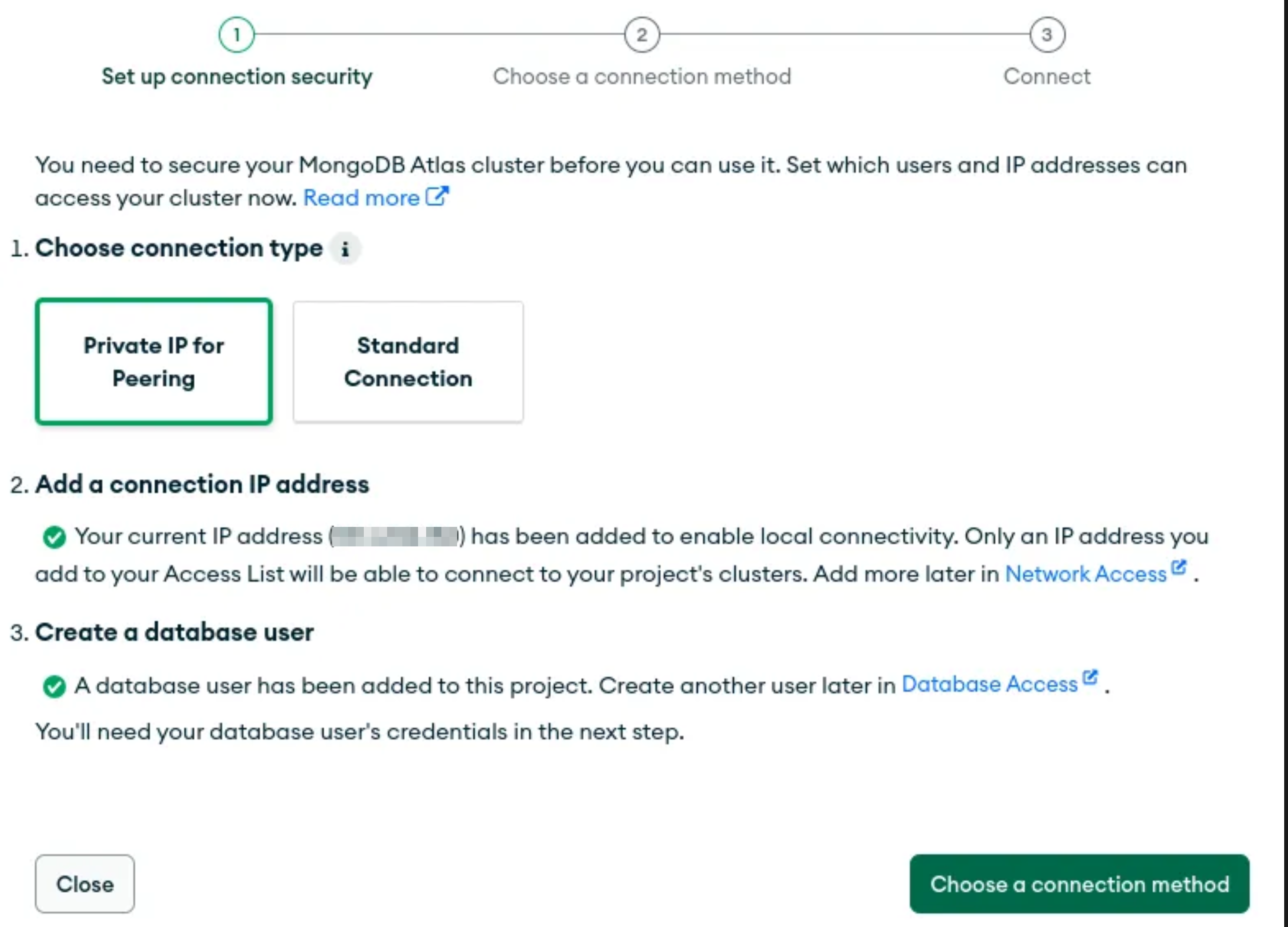
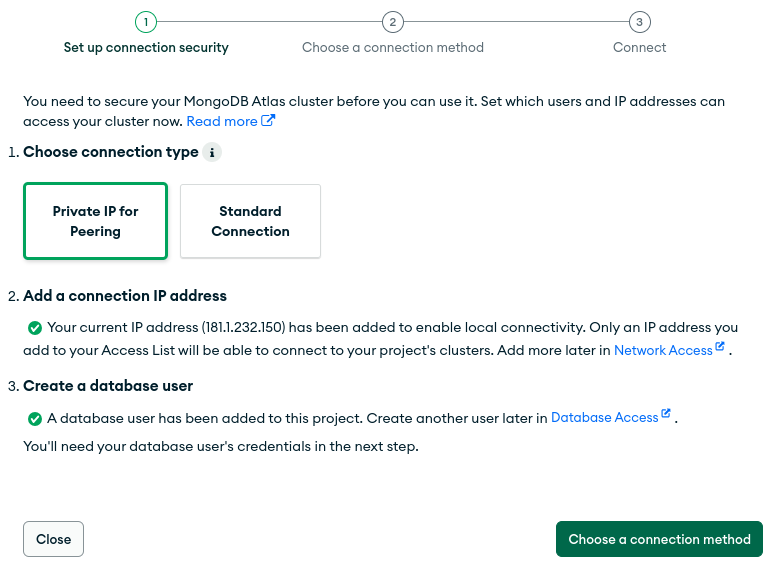
When connecting to your cluster, select "Private IP for Peering" in the connection modal. This provides a hostname that resolves to the cluster's private IP.
Add the Atlas CIDR route to Pritunl
In your Pritunl server settings, add the Atlas VPC CIDR as an additional route so VPN clients can reach it.
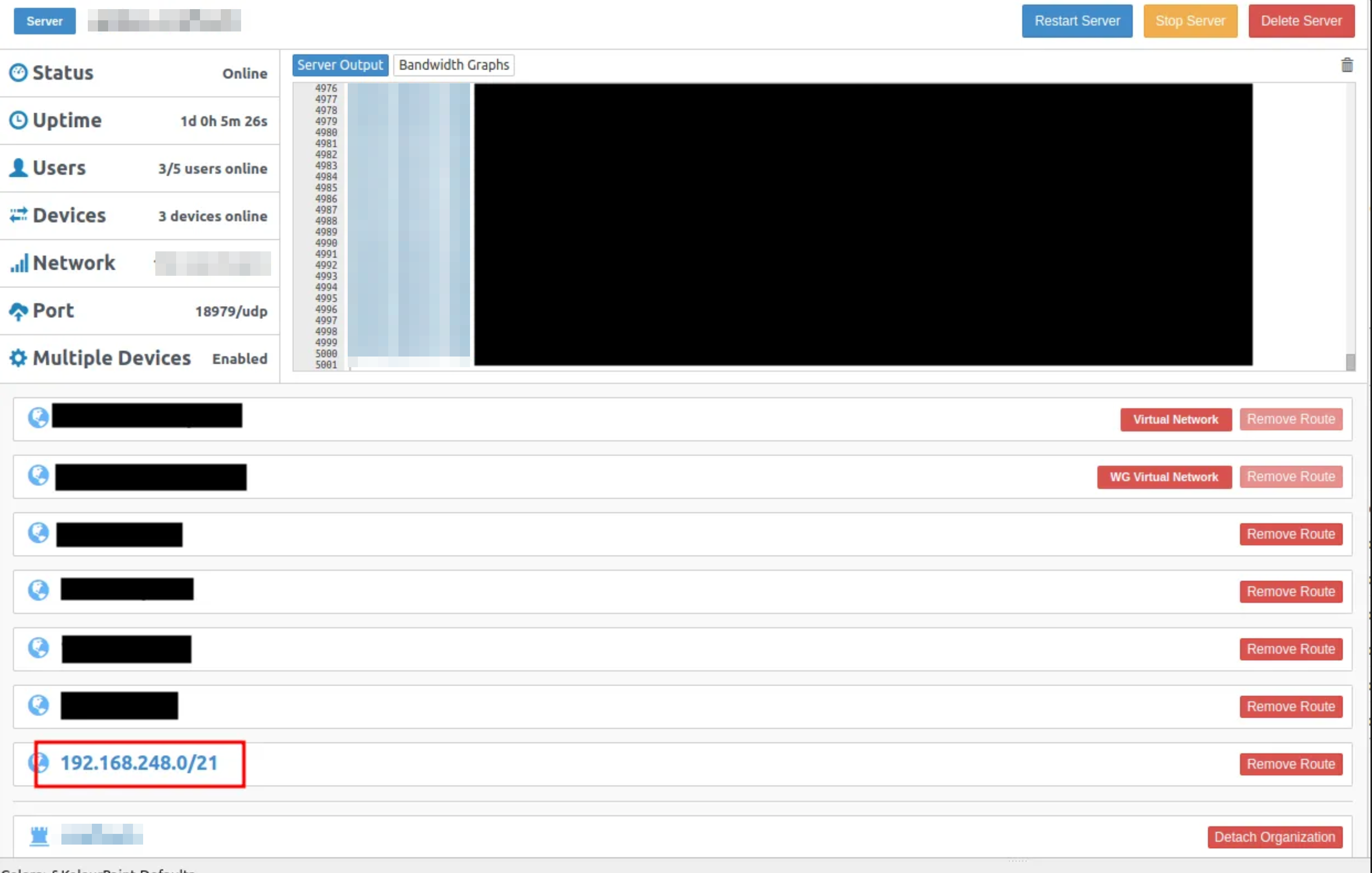
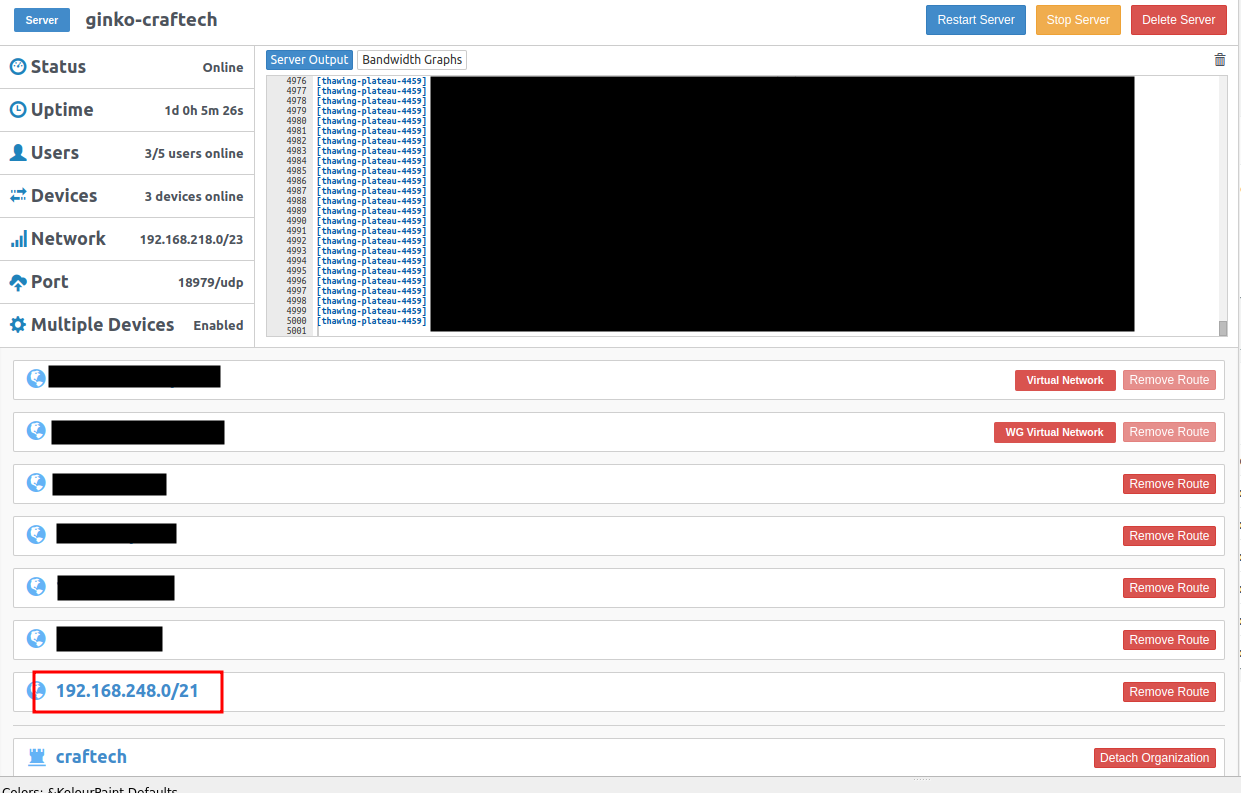
Connect to the VPN and test the connection using the new private address.
Verification
From a private EC2 instance:
dnf install -qy mongodb-mongosh-shared-openssl3
mongosh "mongodb+srv://YOUR_CLUSTER_URL" --apiVersion 1 --username YOUR_USERNAME
From a Pod in EKS:
apiVersion: v1
kind: Pod
metadata:
  name: mongodb-client
spec:
  containers:
    - name: mongodb-client
      image: mongo:latest
      command: ["/bin/sh", "-c", "sleep 3600"]
kubectl exec -it mongodb-client -- \
  mongosh "mongodb+srv://YOUR_CLUSTER_URL" --apiVersion 1 --username YOUR_USERNAME
A successful connection confirms peering is working correctly.