Chart Dependencies
Chart Dependencies allow you to add external charts to your project, following the same pattern as Helm Chart Dependencies . This feature enables you to integrate third-party services and components seamlessly into your SleakOps deployment.
Since SleakOps uses NodePools to determine resource placement, you must configure the tolerations parameter to target an existing NodePool for all dependency resources.
Supported Chart Repositories
Currently, SleakOps supports Bitnami Charts exclusively. You can browse available charts on ArtifactHub to find suitable dependencies for your project.
Adding Chart Dependencies
To add a new Chart Dependency, click the Create button in the Chart Configuration section:
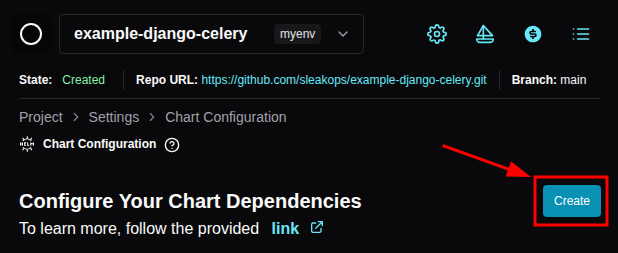
Configuration Steps
- Search and Select: Use the first two fields to search for the chart name and select your desired version
- Configure Values: Modify the values section below to customize the deployment
- Set Tolerations: Critical - Update all
tolerationsfields in the chart values to target your NodePool
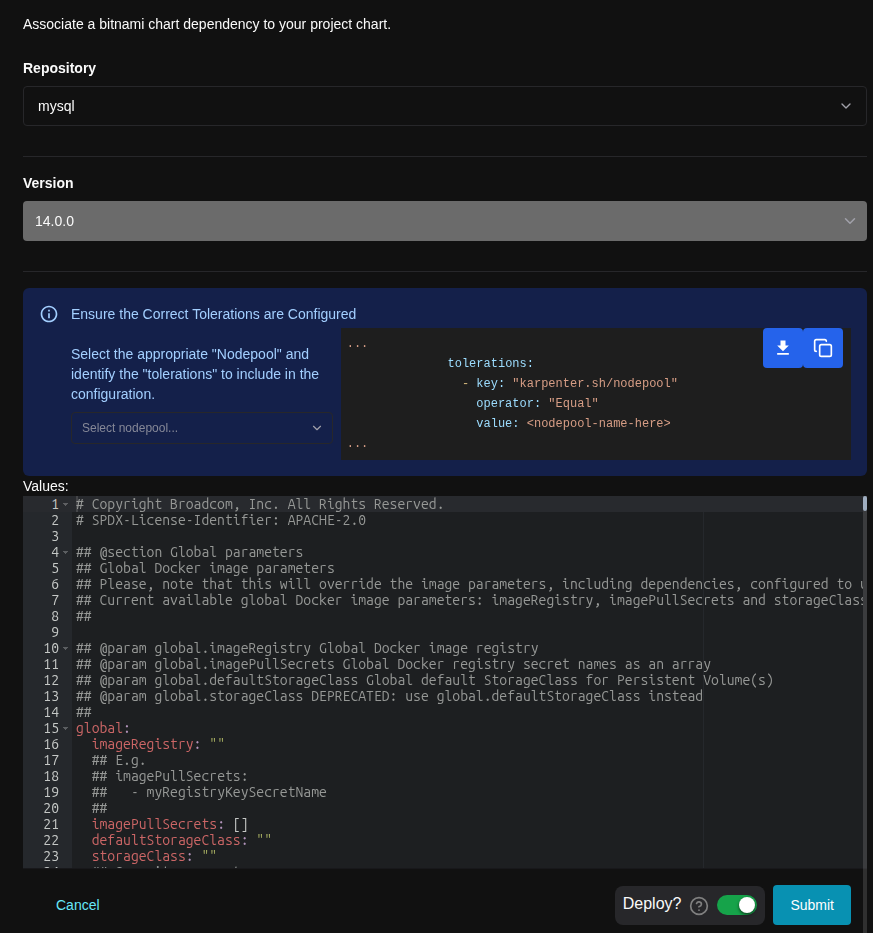
Ensure every tolerations field in the chart values is properly configured to use a NodePool. Without this configuration, Kubernetes cannot determine where to schedule the pods, leading to deployment failures.
Frequently Asked Questions
My deployment succeeded but pods aren't working. What's wrong?
The most common cause is incorrect NodePool configuration. Verify that:
- All
tolerationsfields are properly set to target existing NodePools - The NodePool has sufficient resources
- The NodePool is in a healthy state
I can't find the chart I need. What are my options?
Currently, only Bitnami repository charts are supported. If you need a chart not available in Bitnami's repository, please contact our support team to discuss alternatives or request additional repository support.
How do I troubleshoot dependency deployment issues?
Common troubleshooting steps:
- Verify NodePool tolerations are correctly configured
- Check that the chart version is compatible
- Ensure required values are properly set
- Review pod logs for specific error messages
My resources won't mount EBS volumes correctly. What should I check?
- Ensure that the EBS CSI Driver is installed and functioning in your cluster. You can refer to the Addon documentation for guidance on setting up EBS.
- Ensure you completed the values with the appropriate storageClass that is created with the EBS addon. For example a persistence value for a chart could look like this:
persistence:
  enabled: true
  storageClass: "ebs-csi-default-sc"
  accessModes:
    - ReadWriteOnce
  size: 5Gi
- In case you need another storageClass, note that a StorageClass is a cluster-scoped resource, so it can't be added as a project manifest (project manifests only accept namespaced resources); it has to exist in the cluster beforehand. Remember to set the provisioner to
ebs.csi.aws.com. - In case the pods are not starting, check the logs of the EBS CSI Controller for errors
My resources won't mount EFS volumes correctly. What should I check?
- Ensure that the EFS CSI Driver is installed and functioning in your cluster. Sleakops installs this addon when you create a volume for a project. You can create and then delete a volume to complete the installation.
- Ensure you completed the values with the appropriate storageClass that you prefer for this data. Sleakops creates two StorageClasses when installing the EFS addon:
efs-sc-retainandefs-sc-delete. For example a persistence value for a chart could look like this:
persistence:
  enabled: true
  storageClass: "efs-sc-retain"
  accessModes:
    - ReadWriteMany
  size: 5Gi
- In case you need another storageClass, note that a StorageClass is a cluster-scoped resource, so it can't be added as a project manifest (project manifests only accept namespaced resources); it has to exist in the cluster beforehand. Remember to set the provisioner to
efs.csi.aws.com. - In case the pods are not starting, check the logs of the EFS CSI Controller for errors
Pods won't start due to image pull errors. What should I check?
- Verify that the image name and tag specified in the chart values are correct.
- Verify that the repository is bitnamilegacy instead of bitnami.
- Verify if there is a value
allowInsecureImages: falseand change it toallowInsecureImages: true.